
Reorder the sidebar items or switch off anything you don’t regularly use. Your changes only affect your own view, so nobody else’s sidebar will be changed.
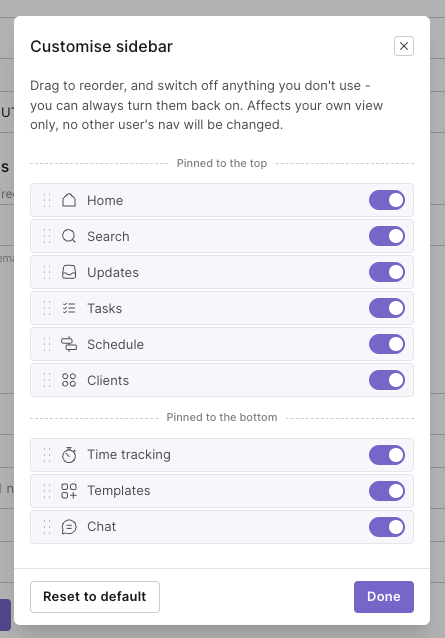
Customise your sidebar
Click your workspace name in the top-left corner.
Select Customise sidebar.
Drag and drop items to change their order.
Use the switches to show or hide items.
Click Done to save your changes.
You can customise the following sidebar items:
Pinned to the top
Home
Search
Updates
Tasks
Schedule
Clients
Pinned to the bottom
Time tracking
Templates
Chat
Bring back a hidden item
Hidden items aren’t removed from Outlign. To bring one back:
Open Customise sidebar again.
Switch the item back on.
Click Done.
Reset your sidebar
To return everything to its original position and make all items visible again, open Customise sidebar and click Reset to default