
Hands up if you hate the ordeal of tracking down file uploads in email? Or navigating the many many folders on Dropbox or Google Drive?
Upload files to a task
When you add a new content inside a process project or a board, adding files is easy;
Simply type your message and then;
Use the command menu by typing /
Select 'file'
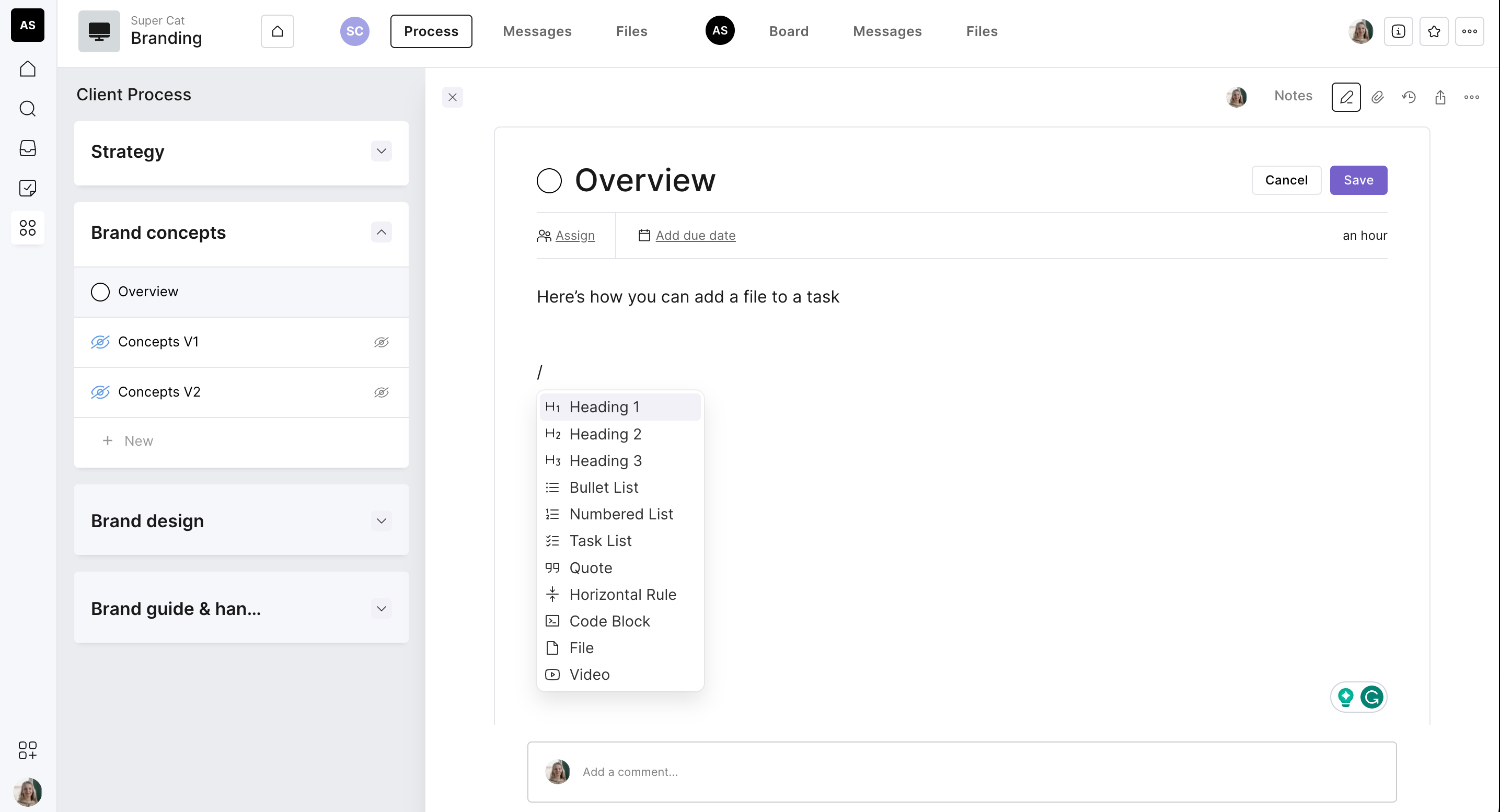
A file widget will be added to your content
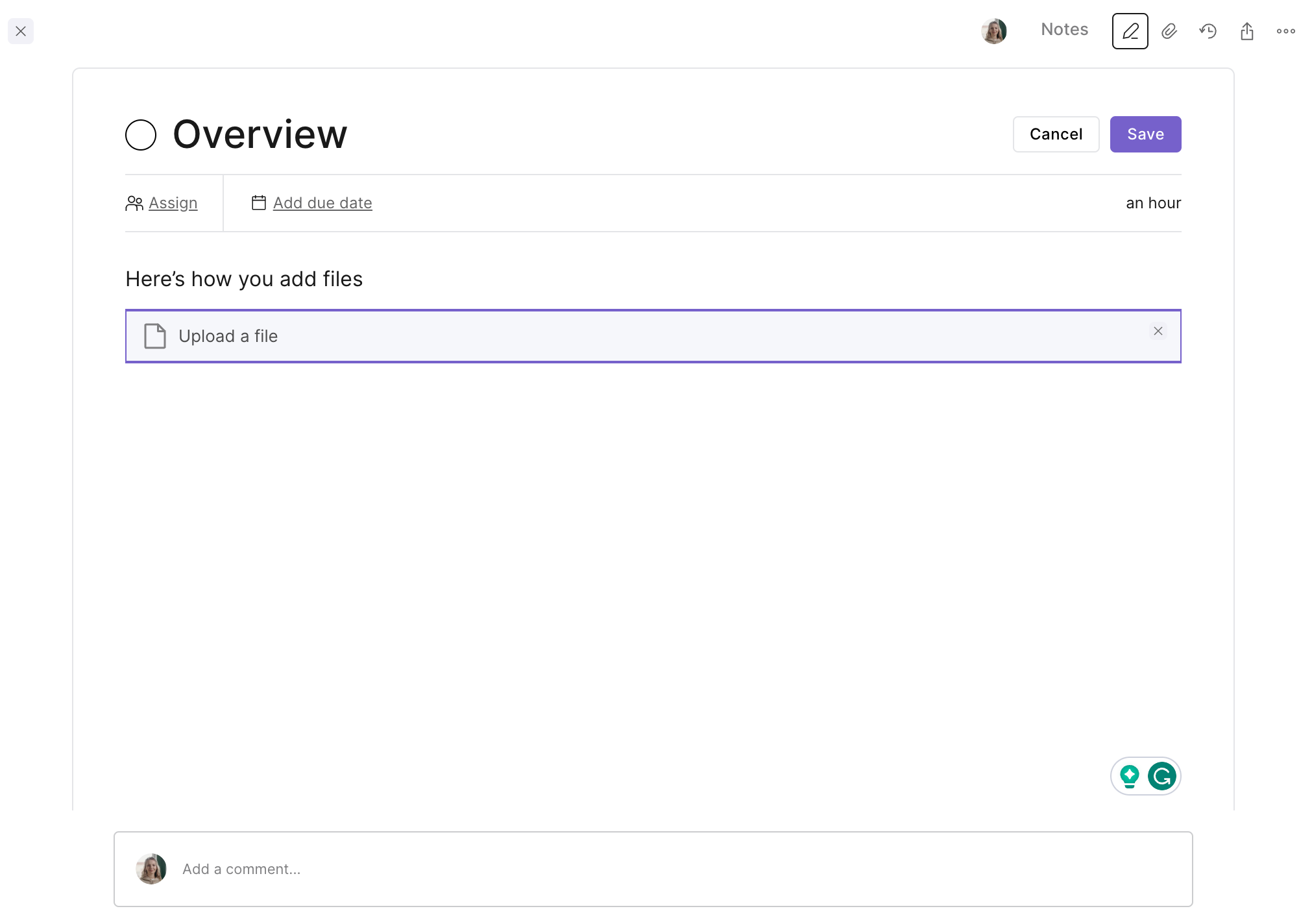
Click this to upload your file from your desktop, save the message, and that completes the process
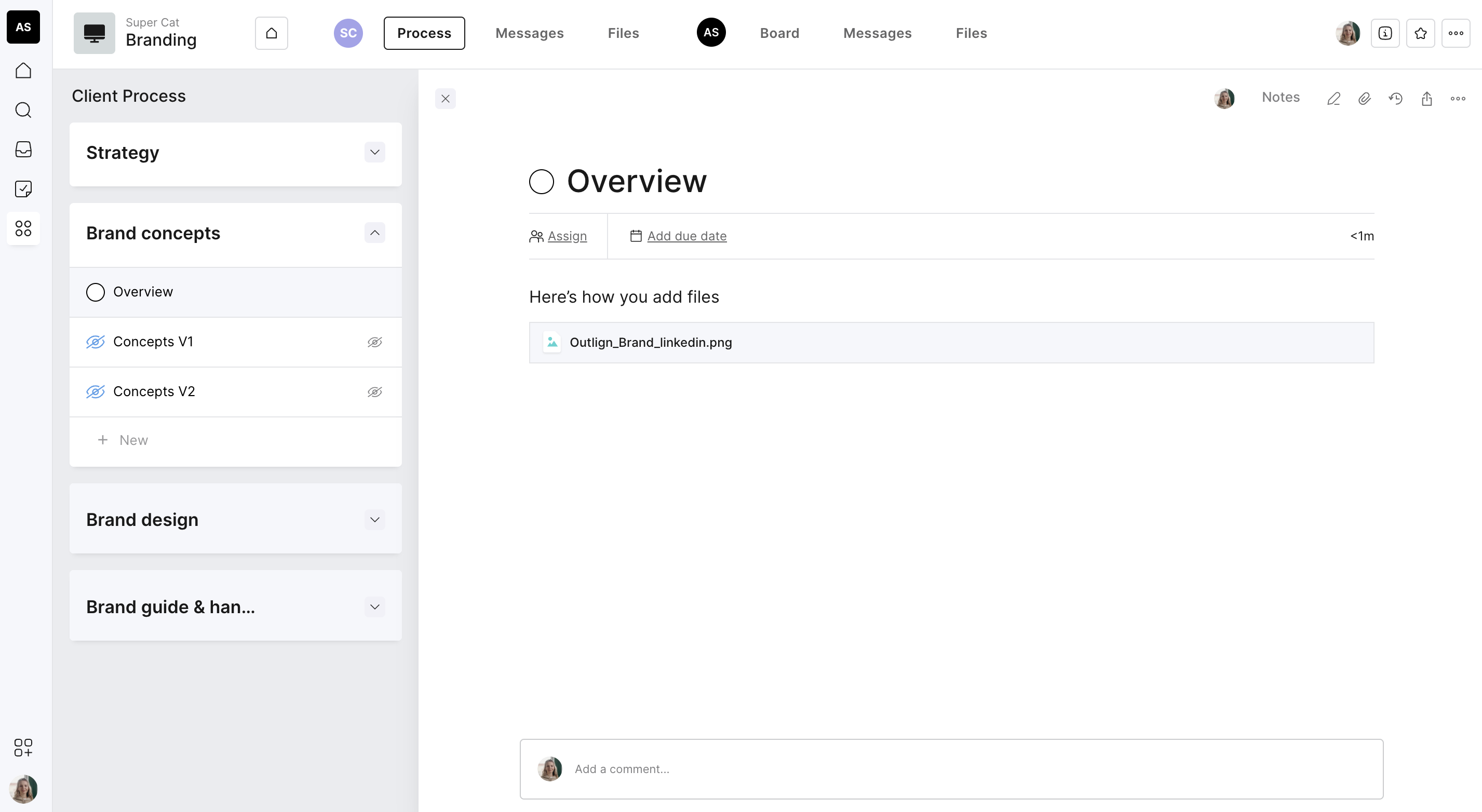
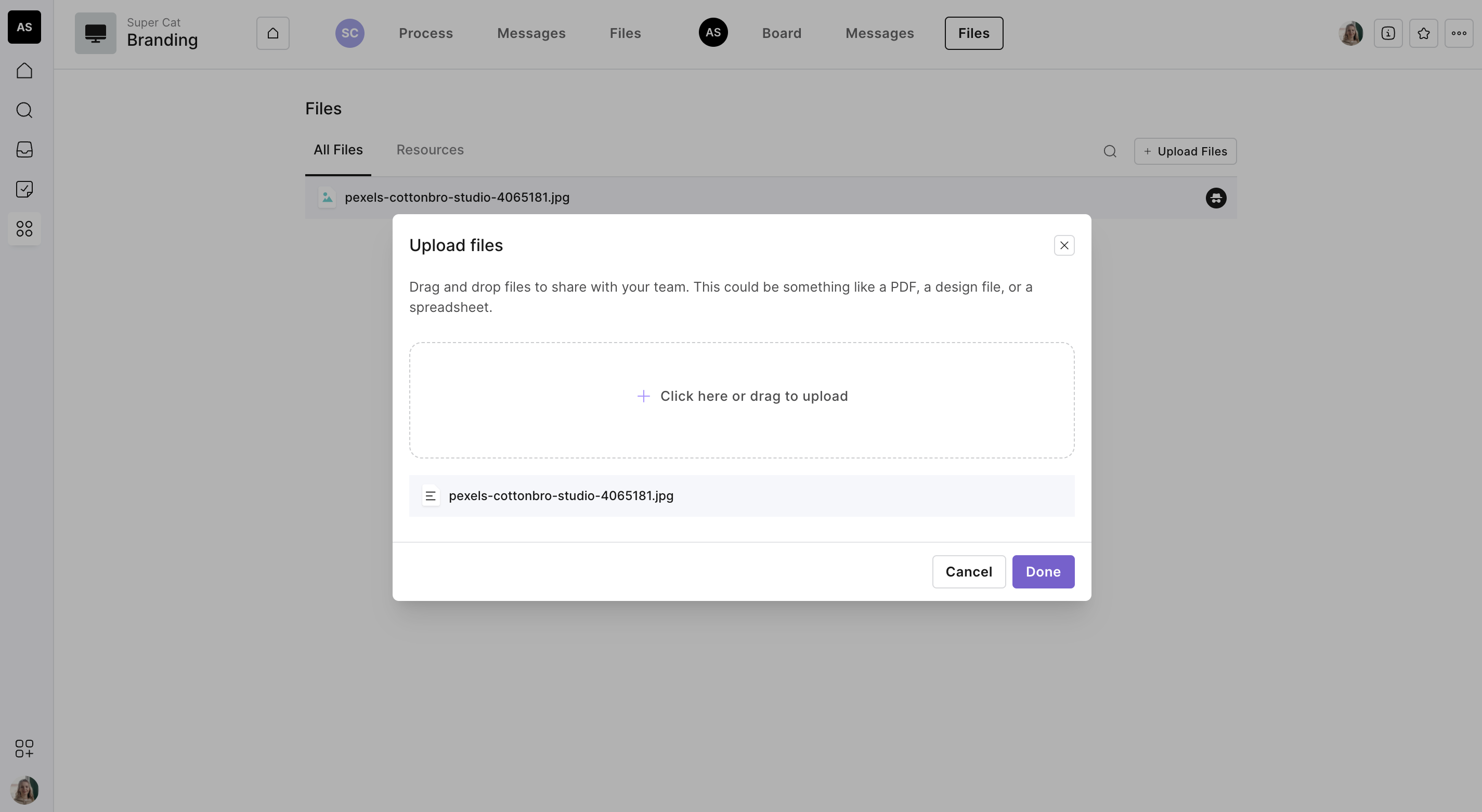
Upload a file through the file tab
Every workspace on Outlign comes with a file section. Here you can also upload project files.
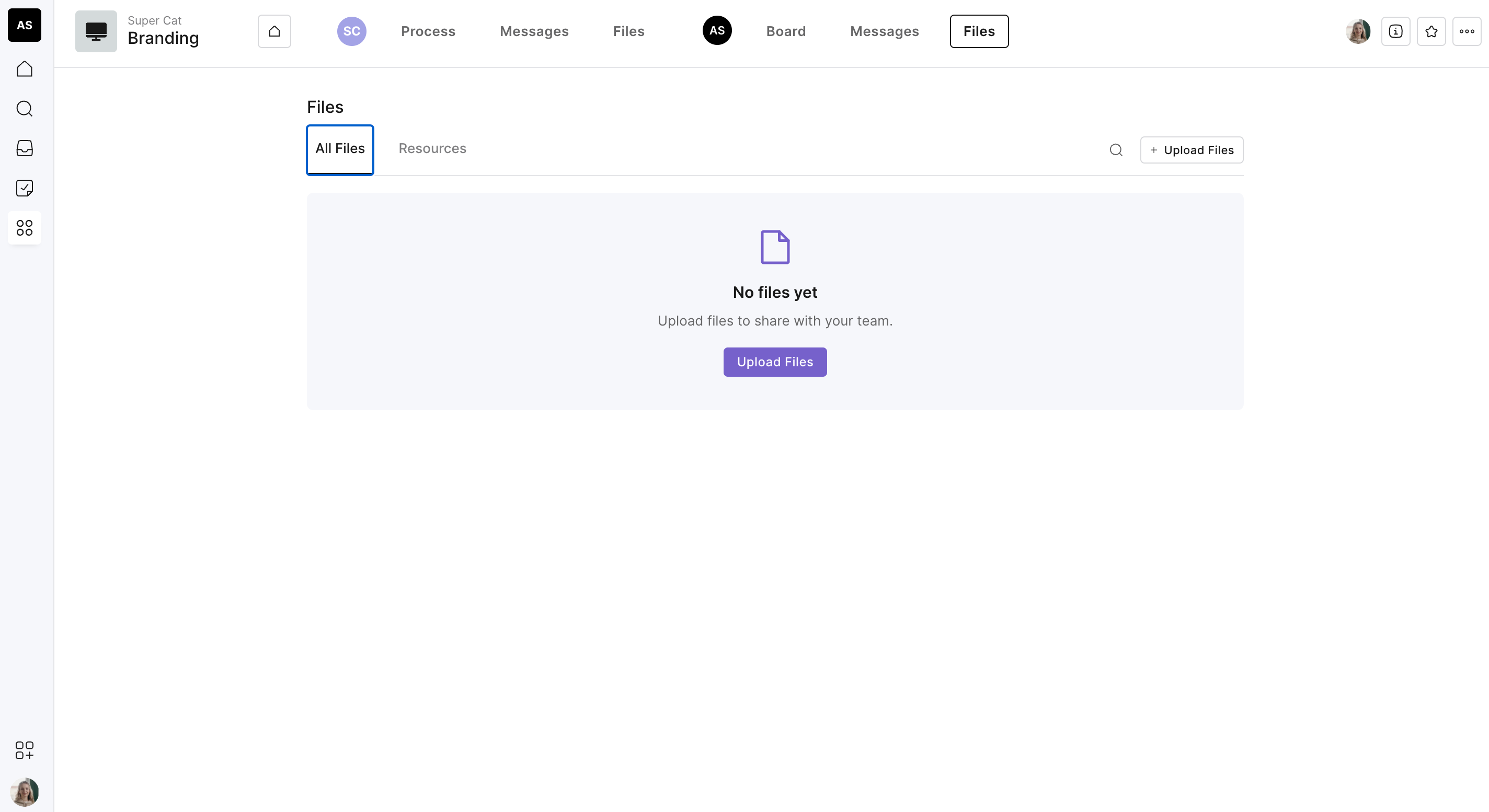
Simply add files or drag and drop from your desktop
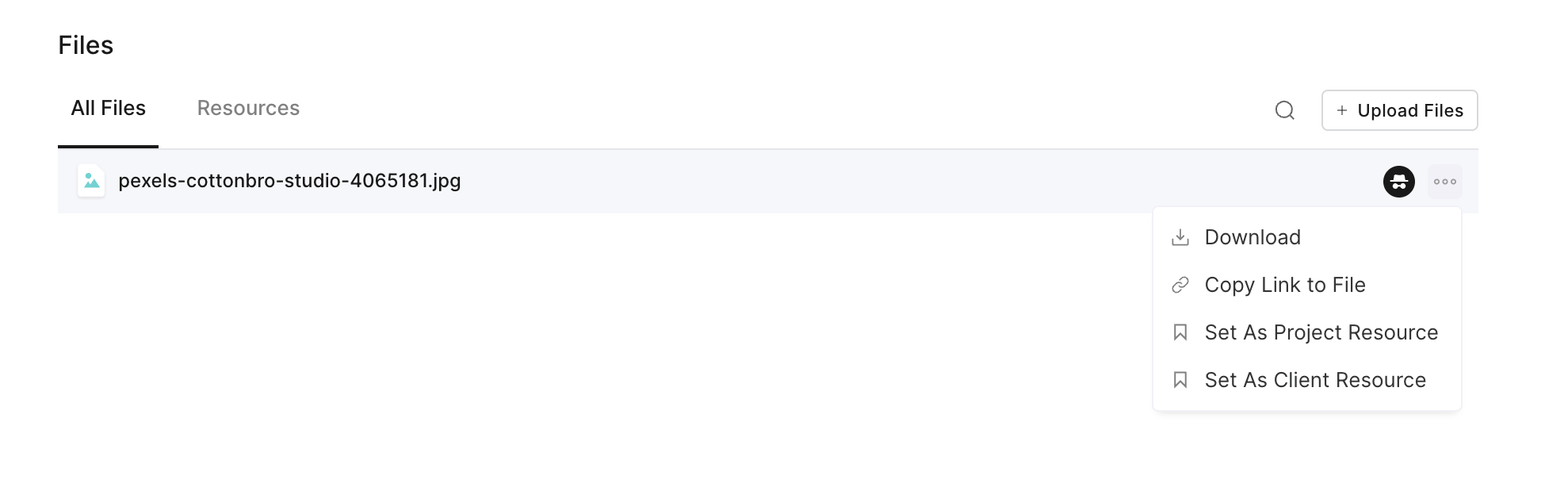
Files can be downloaded or set as project resources (which if selected will make files show up on the client dashboard)
Note: Both the agency and client side can upload files to the project. The client cannot remove files you have uploaded.