Outlign offers the ability to time tracking and monitor project budgets through Harvest - simple time tracking software that's great for agencies.
In order to use this integration, here's the steps to follow...
Create a Harvest account for your agency
Add your team members to Harvest.
We generally find it's easiest to just assign all team members to all projects so you don't have to think about this again.
Create a project in Harvest for any project you want to track time for in Outlign - including your charge rates and the project budget so you can monitor this in Outlign
Before tracking time in Outlign, your core project structure must be created in Harvest.
Outlign reads project and task data from Harvest, it does not push tasks back into Harvest.
To ensure everything works correctly:
Create your client in Harvest
Create your project in Harvest
Add your budgeted tasks (time tracking categories) in Harvest
Once these are set up, they will automatically be available inside Outlign after the integration is connected.
Important to note
Tasks should be created and managed in Harvest
Outlign pulls this information through for time tracking
Creating tasks in Outlign will not create them in Harvest
Setting up Harvest correctly first ensures your budgets, reporting, and time tracking all stay in sync.
Within your Outlign account, click the top left menu for your agency, and navigate to the Integrations page.
Click on the button to Connect your Harvest account to your Outlign account.
Now the two accounts are linked for everyone on the agency team in your Outlign company account 👌
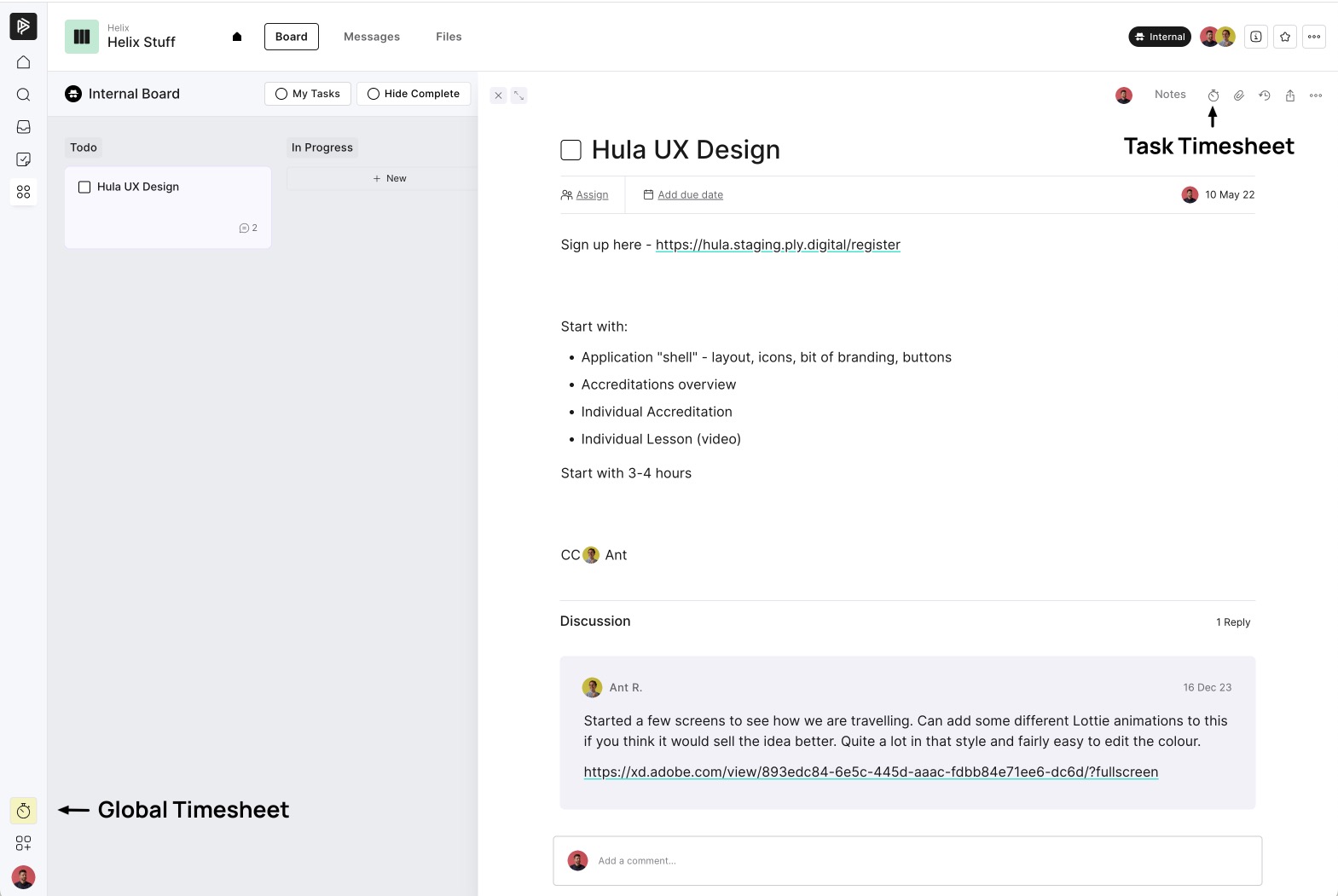
Once the two accounts are linked, you will see a time tracking icon in two places:
Within the left sidebar on any screen within Outlign - this is your Global Timesheet showing all your time entries for the current day
In the top right within the detail view of any step/task is your Task Timesheet, which will show all time tracked for that task, and allow you to start tracking new time against that task.
The first time you go to track time, you will be prompted to choose which user in Harvest to link to your user account in Outlign.
For example, if I'm logged in as Mark C within Outlign, I should choose to link that to the Mark C user in Harvest, so that my time tracked in Outlign is assigned to the right user in Harvest.
You only need to do this once, and only for yourself. The rest of your team will do the same for their own accounts.
You can track time two main ways:
Within the Global Timesheet, just click the + symbol to add a new time entry, and select a project and task, and then optionally enter notes and a time duration - or just press Start to start your timer.
Within the Task Timesheet, click on + Time Entry and choose a task.
The Notes field will be pre-filled with the name of the Outlign task, but you can change this if you like
You can enter a duration or just click Start to start tracking
Note: The first time someone on a project uses the Task Timesheet, they will be prompted to connect a Harvest project to the Outlign project. You will need to ensure the project is set up in Harvest before you can connect it to an Outlign project.
There's a few different ways you can keep an eye on your time and budgets:
See how much time you've tracked for the whole day in your Global Timesheet
See how much time has been tracked to a particular task in the Task Timesheet
If the Harvest project has a budget, you can monitor how much of the budget has been used on the Overview screen of the project.