Outlign is designed for creative teams and agencies who want to move fast, stay lean, and keep things clear. We’ve intentionally kept permissions simple so you can focus on work, not admin overhead.
Whether you’re managing full-time staff, freelancers, or external clients, we give you straightforward ways to control access and scale your team up or down as needed.
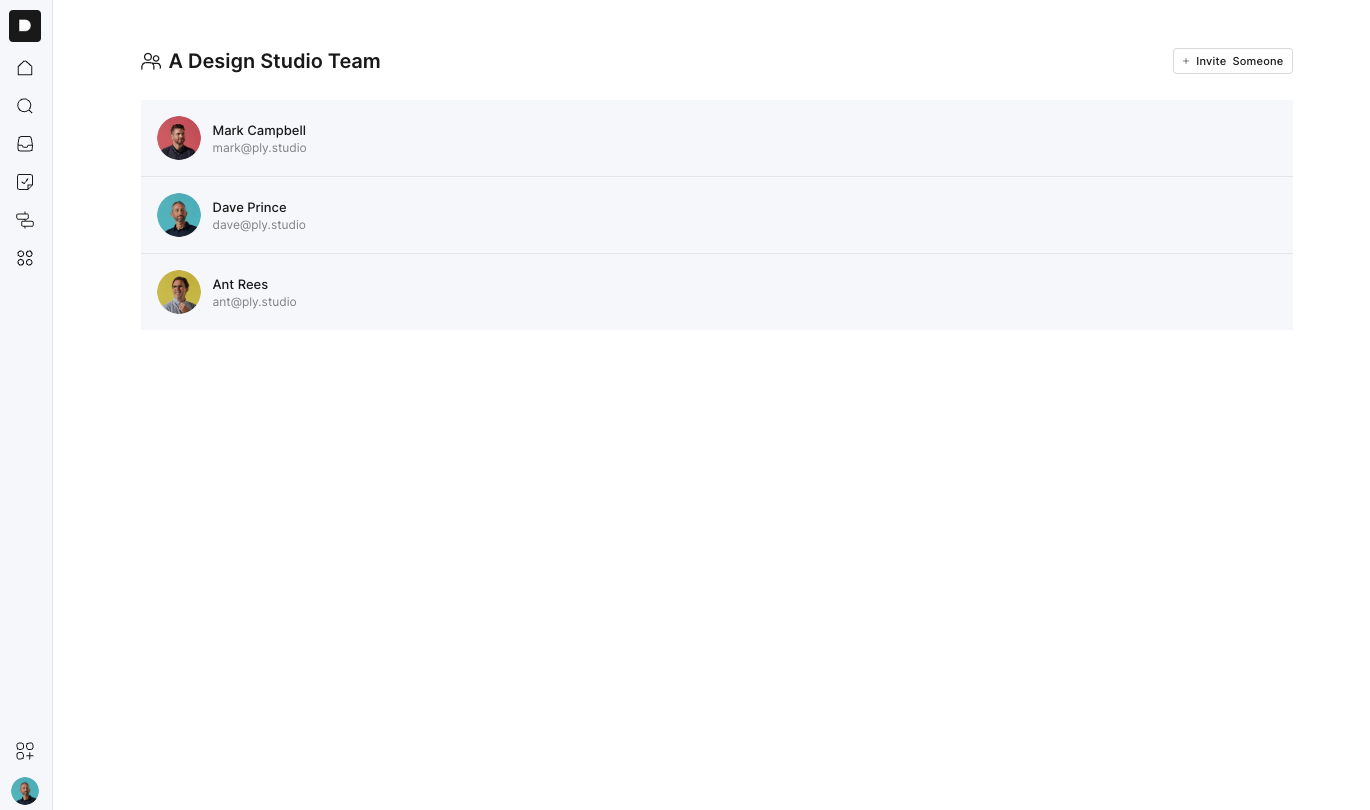
Agency users are internal team members, whether full-time, part-time, or freelance.
By default:
They can only see projects they've been explicitly added to
They won’t see or access other projects unless:
They have access to the client workspace, and
They actively choose to join a project
When invited to a project, agency users get access to:
Internal task boards and project files
Client messages and shared files
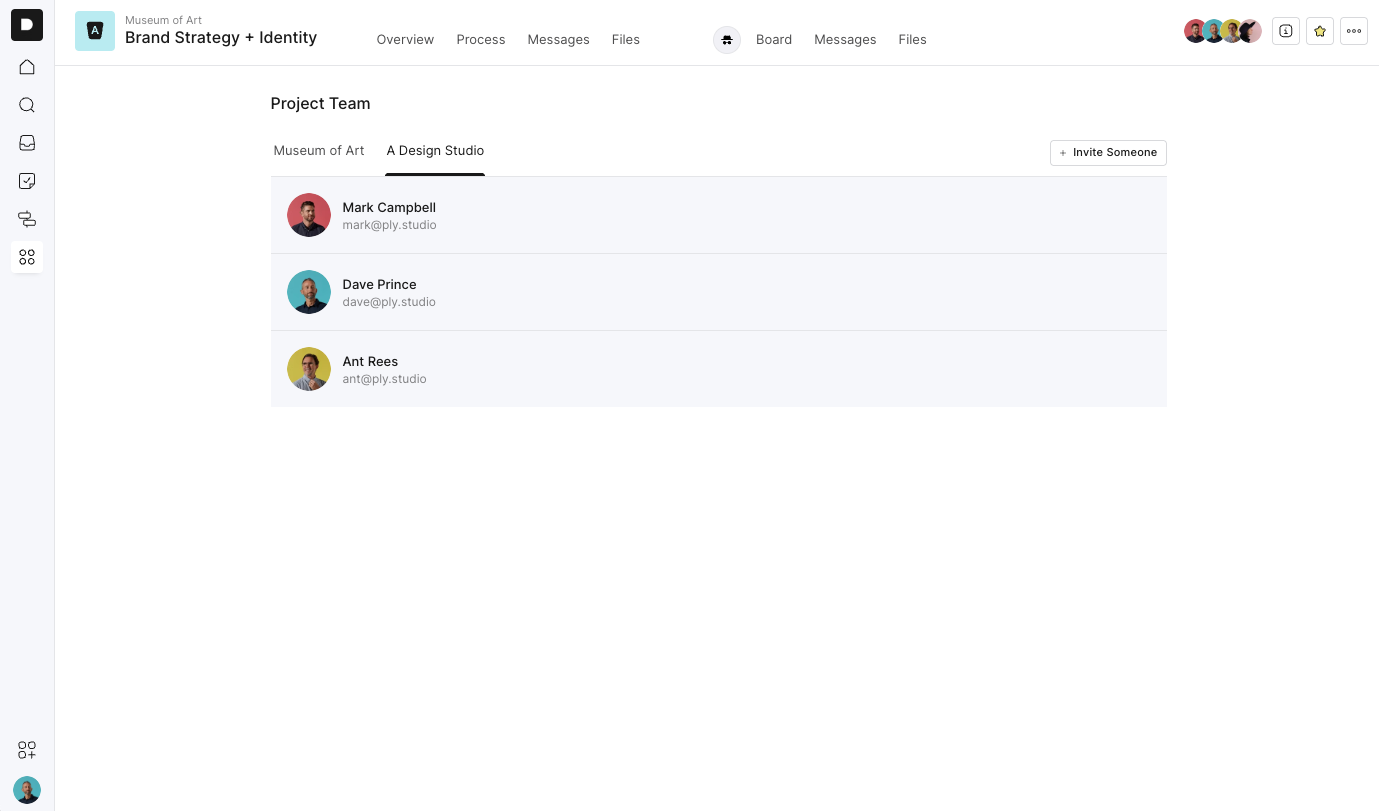
(Everyone in the agency team a sees both sides of a project)
You can invite agency users via your main agency settings:
You can also invite them directly to individual projects:
Client users are permission-restricted by default. They only see what you share with them.
Client users can:
Access only the projects they’ve been invited to
View the client-facing side, including:
Project home
Process view
Messages
Shared files
Board view
Client users cannot:
View internal boards or internal messages
Access other clients or projects
Join new projects without an invite
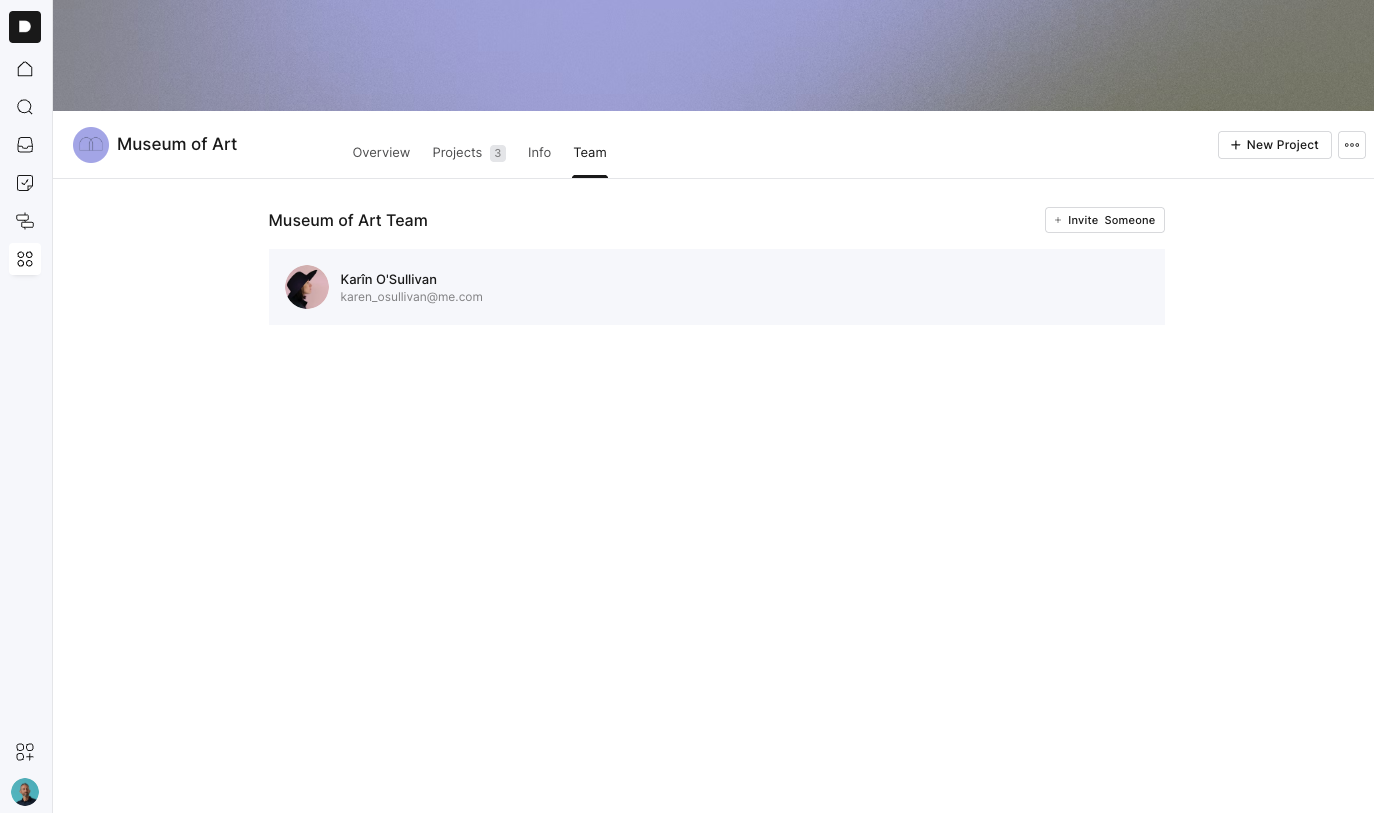
You can add clients in two ways:
From the client workspace (for access to all of that client's projects)
From an individual project (for access to just that project):
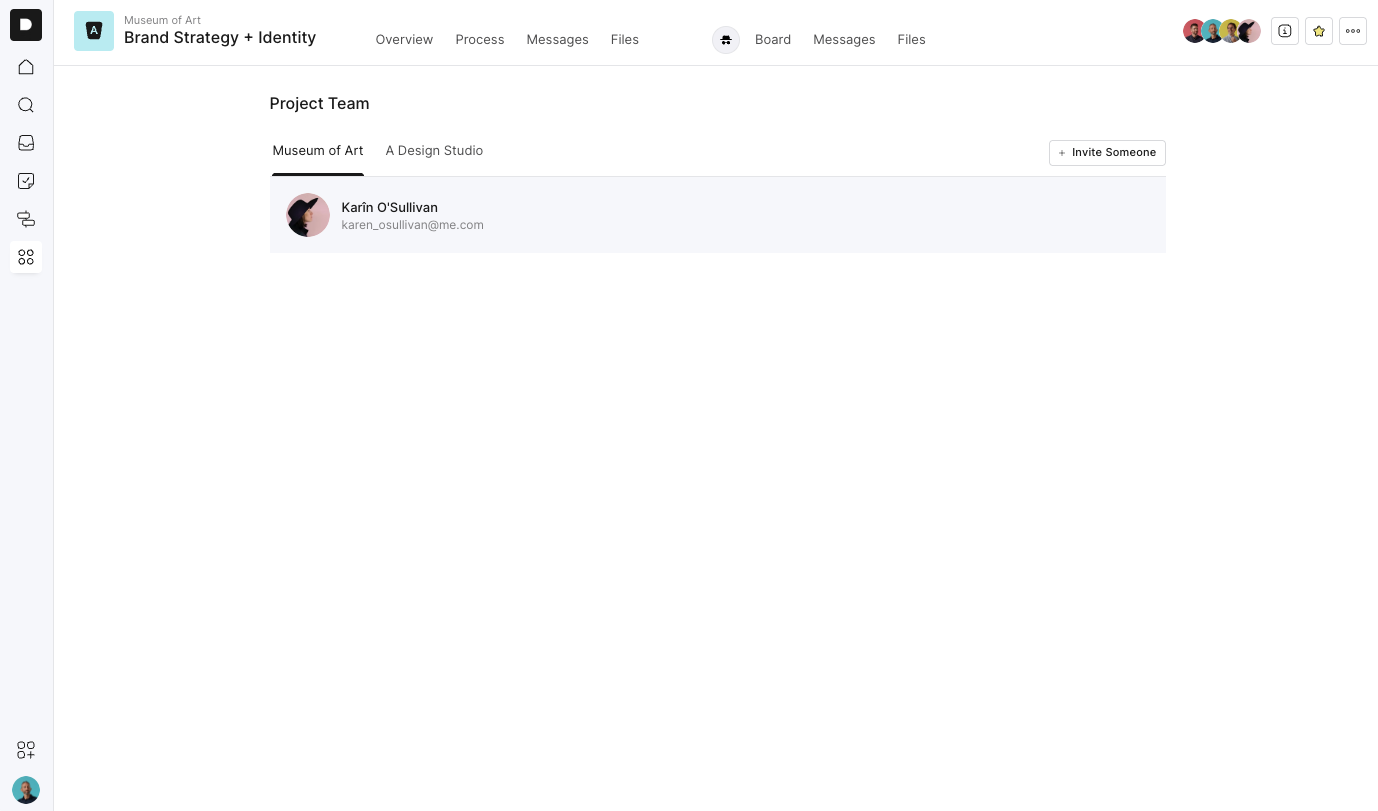
Inside a project, client and agency users are shown in separate groups so you can clearly see who belongs where.
If you're bringing in freelance help:
Add a seat to your plan when needed
Invite the freelancer to the relevant project(s)
Remove the seat once their work is complete
This keeps your team list tidy and your costs controlled.
Outlign only charges for agency users. Clients are free.
You can manage your billing and team size at any time from the Billing section:
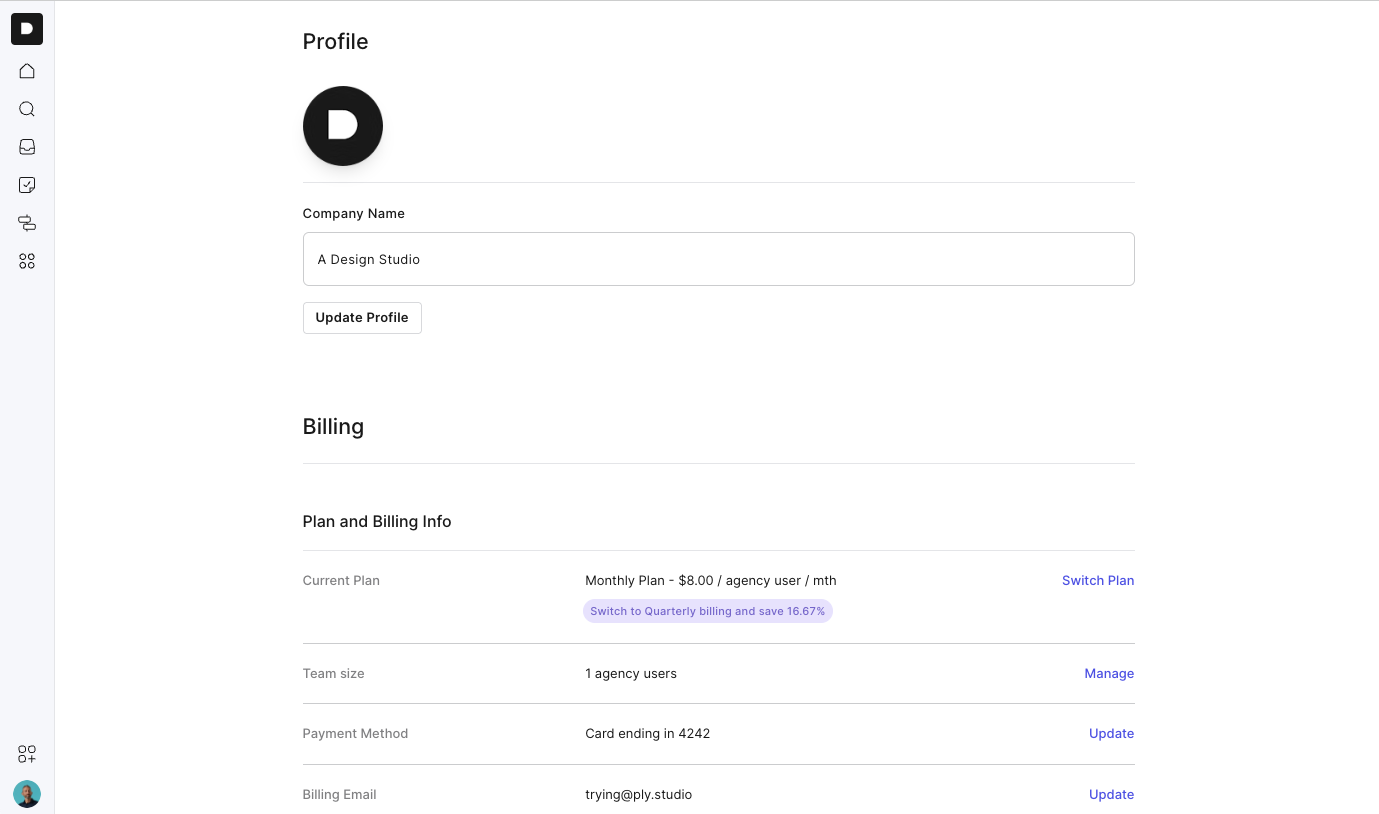
Add or remove seats as needed
Switch between monthly or quarterly billing
Update payment details or billing email
For short-term freelancers, just add a seat, invite them, and remove it when the work is done. You only pay while the seat is active.
Agency users can only access what they’re invited to
Client users are locked to the projects and information you share
Only agency users count toward your subscription
You can scale your seats up or down at any time
If you have any questions or want help setting things up, contact us at [email protected]