Outlign uses a simple three-tier roles system to manage team permissions. Instead of dozens of confusing toggles, each role clearly defines what someone can see and do inside your workspace, keeping your projects secure and your processes protected.
Alongside your internal team roles, Outlign also supports Client Users. Clients have their own restricted view inside a project, separate from your agency’s internal workflow. You can read more about how client access works at the end of this article.
You can access roles by heading to settings > team;
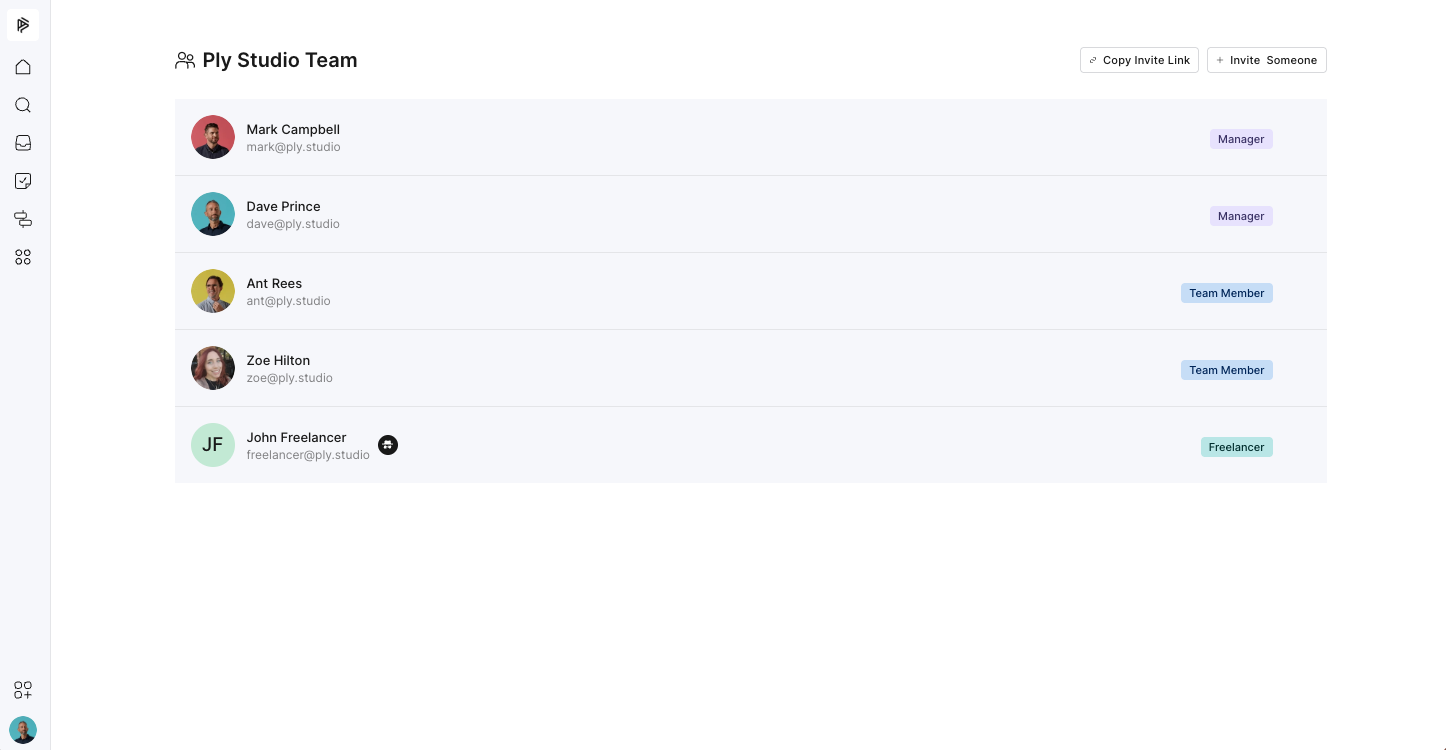
There are three roles:
Manager
Team Member
Freelancer
Below you’ll find a breakdown of each role and a full, explicit list of restrictions for Freelancers.
Managers have the highest level of control inside your agency workspace.
Managers can:
Access all features
Manage billing
Manage roles
Invite new team members
View all clients and all projects
Delete the agency workspace
Change any role at any time
Team Members handle most of the day-to-day work.
Team Members can:
See all clients
Access all projects they're added to
Invite new team members
Collaborate freely inside projects
Team Members cannot:
Edit roles
Edit billing
Delete the agency account
Freelancers are intentionally limited to ensure your internal operations and client-side experience stay protected.
They can only view and work on projects they are explicitly assigned to.
Below is the full list of everything a Freelancer cannot access or perform inside Outlign:
Can’t access any client-side or client-only projects (at all)
Can’t be invited to client-side or client-only projects
Can’t see client sections in the navigation
Can’t see client or budget information on project overview
Can’t see “internal task” links
Can’t see search items that aren’t otherwise visible to them
Can’t see all clients, only clients for projects they're assigned to
Clients cannot see the freelancer in the client view
Can’t be @ mentioned on the client side
Can’t be assigned tasks on the client side
Can’t edit project info
Can’t edit project title, cover image, or convert to template
Can’t edit phase titles or phase order
Can’t edit steps in a process project (but can edit board tasks)
Can’t edit step templates
Can’t add themselves to projects
Can’t comment on project info or edit project info
Can’t invite clients to a project or the client dashboard
Can’t assign clients
Can’t edit anything on the client side
Can’t receive client-side notifications (if accidentally added, they are blocked — mimicking client protections in reverse)
Can’t manage roles
Can’t manage billing
Can’t delete the agency account
Freelancers often work on only a slice of a project, not full client relationships and not internal processes.
This permission set protects:
Client privacy
Internal team workflows
Process templates
Financial and budget information
Internal discussions and client approvals
And it helps prevent freelancers from accidentally seeing or editing anything sensitive.
If you're working with long-term contractors who need more access, you can always change their role to Team Member at any time under:
Settings → Team
When you invite a client into Outlign, they get access to a simplified, client-safe view of the project. Clients can only see the client side of a project — never the internal side — and they only have access to the specific projects you’ve invited them into.
Clients can:
View the client workspace and the projects inside it
Access the main project tabs (Overview, Board, Messages and files)
Launch their project from the client space (but cannot create new projects themselves)
Comment on steps and collaborate where you’ve opened things up to them
Add tasks on board-style projects if you’ve enabled client task creation
View all files shared with them
Complete tasks assigned to them
In general, clients cannot access or view anything that belongs to your internal workflow or agency operations. This includes (but is not limited to):
Anything on the internal side of a project
Any internal-only notes, tasks, steps, files, comments, or templates
Any file marked as Internal
Any project or workspace they haven’t been explicitly invited to
Creating new projects
Inviting other client users
Editing project structure (phases, steps, templates, project info, etc.)
Editing anything that would affect agency-side workflow or visibility
Client access is intentionally limited and designed so they only see what they need — nothing more. Their workspace is locked down by default to:
Keep internal workflows private
Protect sensitive client or budget information
Maintain a clean, simple view that’s easy for clients to use