Tasks gives you one simple place to see everything you’re responsible for across all clients and all projects. Instead of jumping between projects or trying to remember what’s due when, My Tasks pulls every task assigned to you into one tidy, organised view. It’s designed to help you stay focused, stay on track, and plan your day or week with confidence.
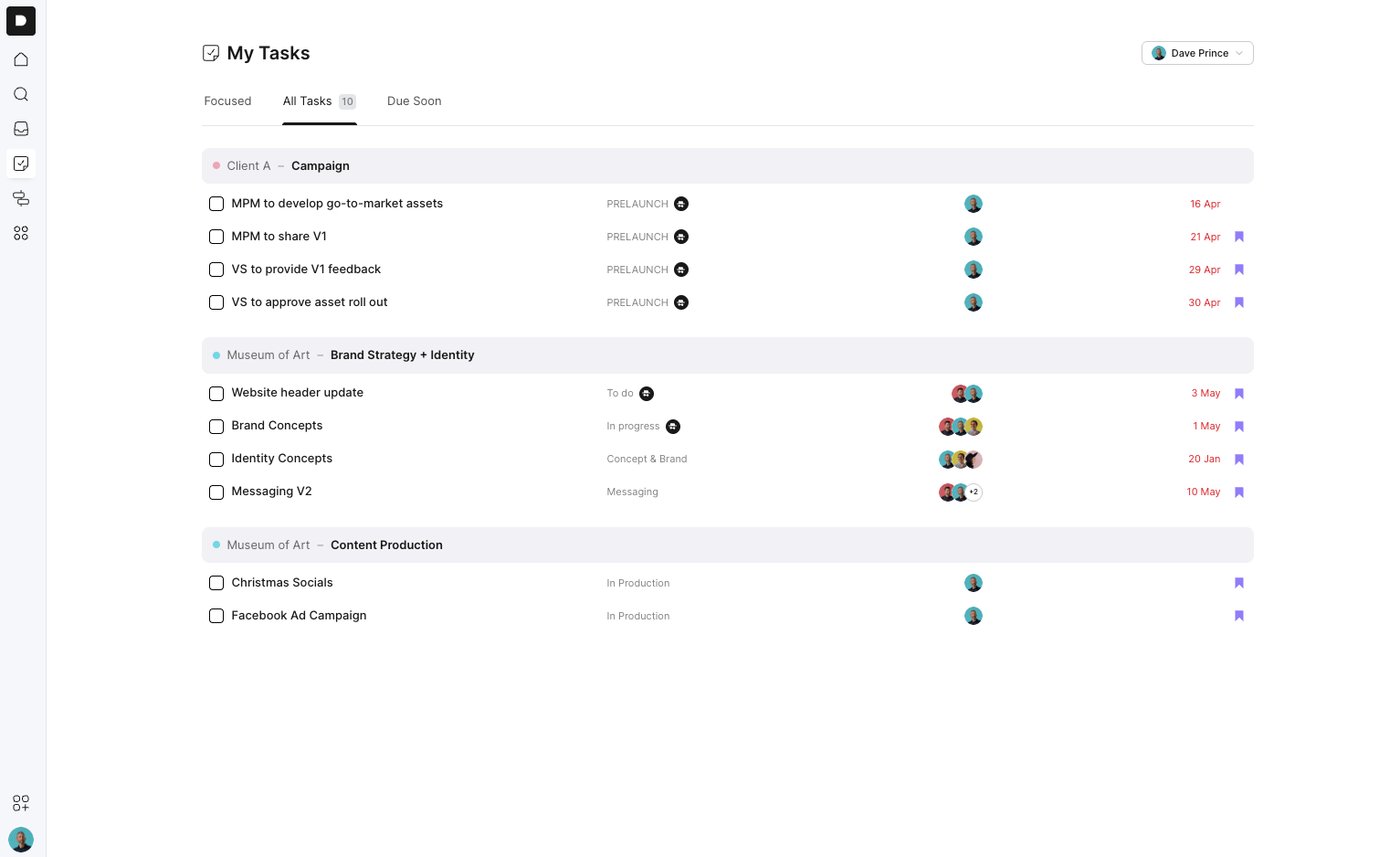
When you’re assigned to a task inside any project, it automatically appears in My Tasks. Tasks are organised in a clear hierarchy so you always know where each one sits:
Client
Project
Phase
Task name
Who else is assigned (if applicable)
Due date
You can click any task to jump straight into the project, or mark it complete directly from this screen.
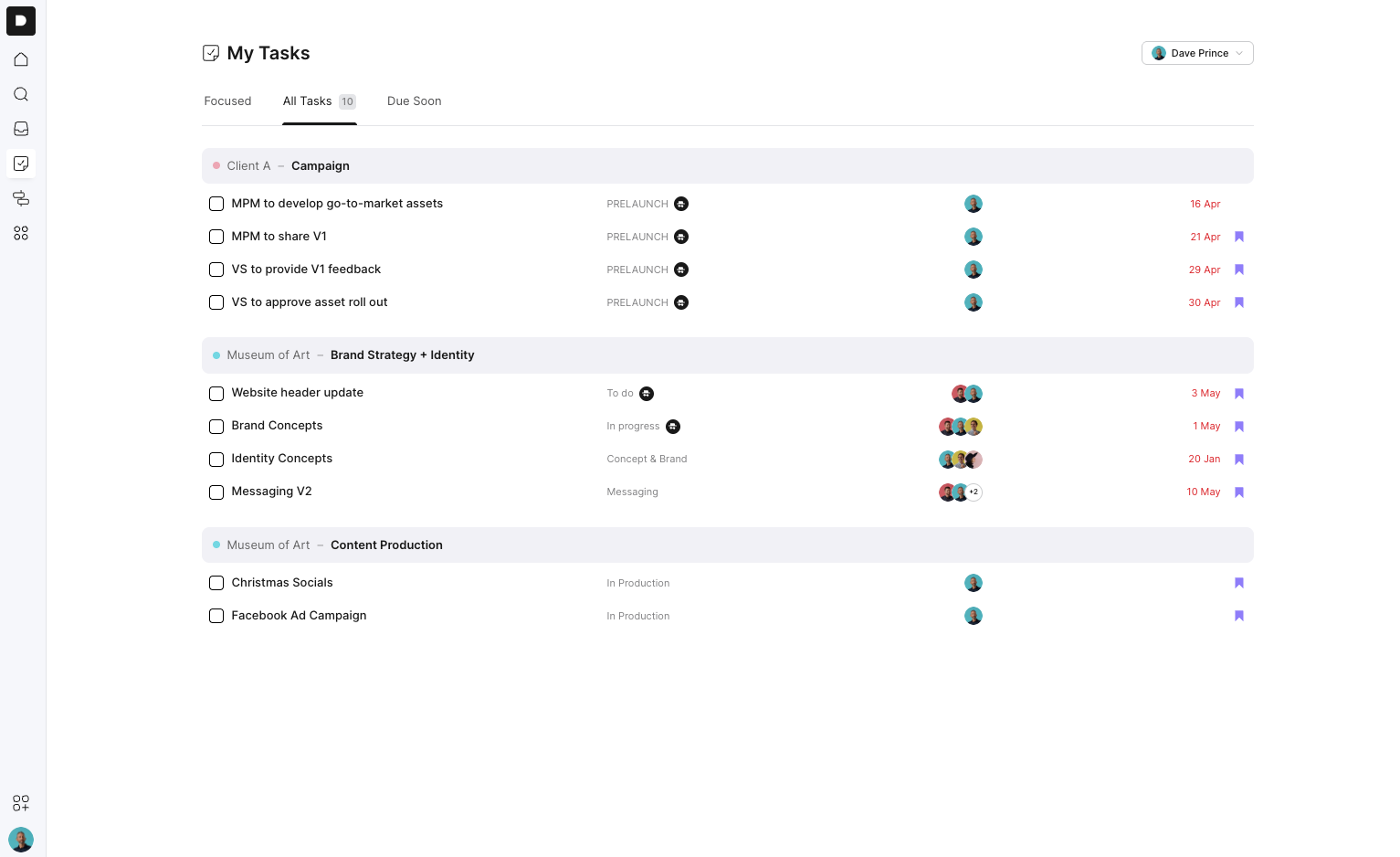
This is your full task list — every active task you’re assigned to.
This view lets you:
See your total task count
Expand clients and projects to see exactly where tasks live
Click any task to open it inside its project
Mark tasks as complete
Bookmark tasks to bring them into your Focus list
Most people start here and then curate what truly matters for the week.
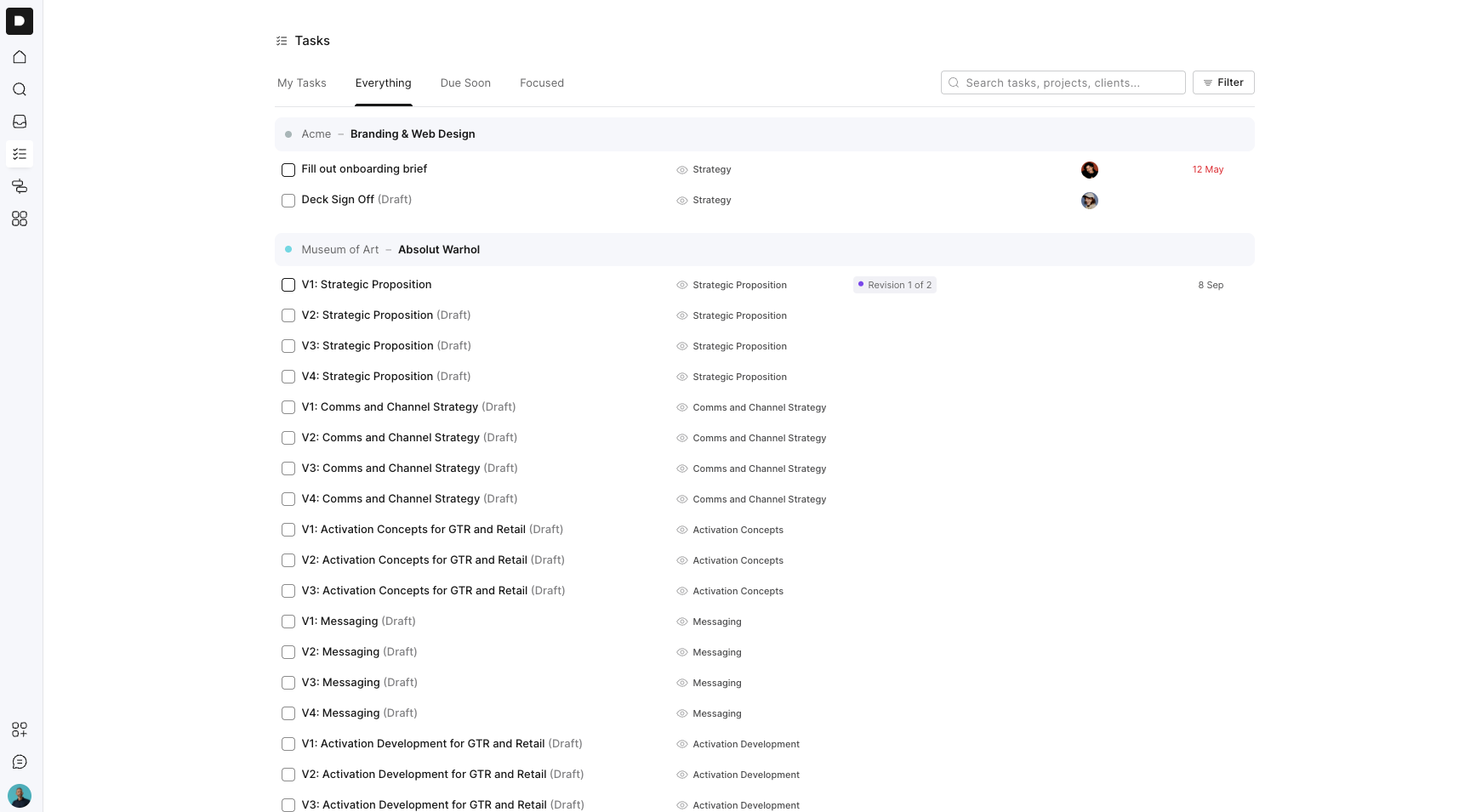
Everything gives you a complete view of all projects and tasks you have access to, including work assigned to other members of your team.
It’s useful when you want to:
Get across everything happening across the business
Review all tasks for a particular client or project
Check what different team members have on their plate
Find overdue work or tasks coming up
Review both open and completed tasks
For example, a project manager might use Everything at the start of the week to review all open tasks due that month, check who they’re assigned to and spot anything that needs following up.
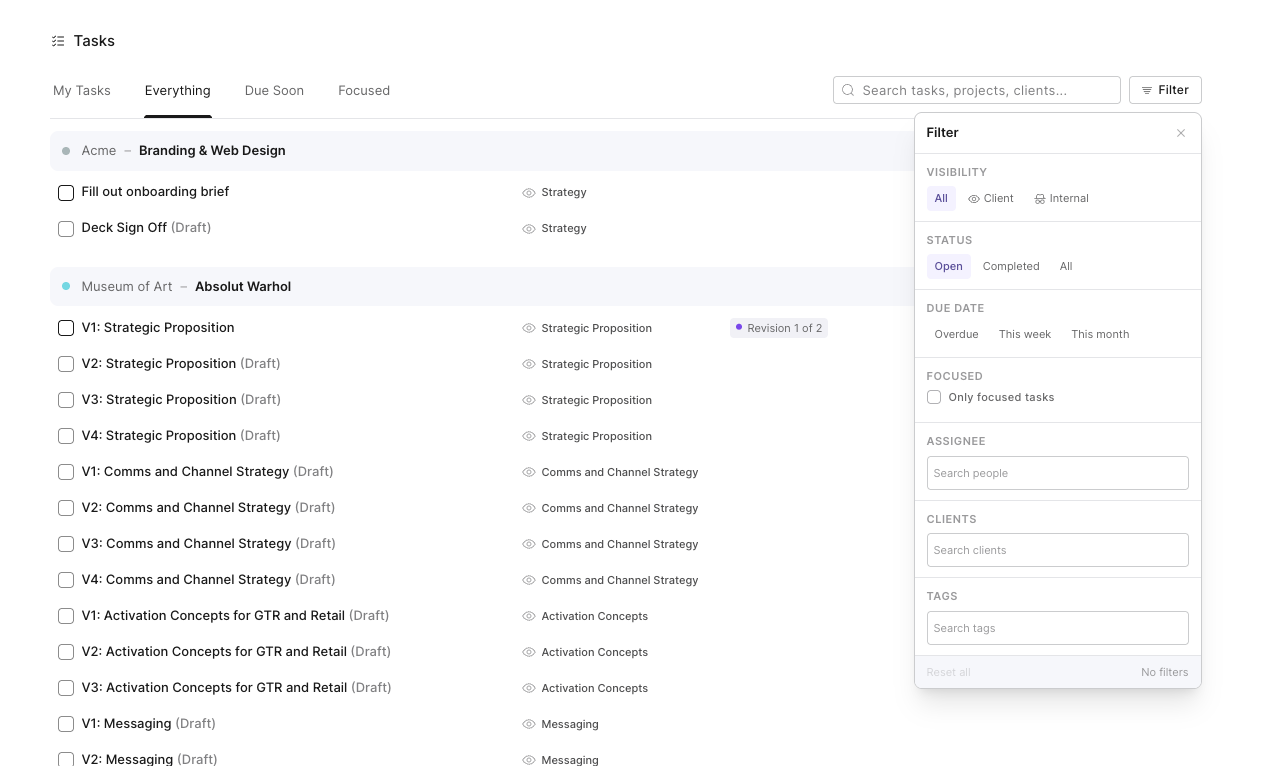
Use the search bar to quickly find a task, project or client. You can also filter the list by:
Visibility: All, Client or Internal
Status: Open, Completed or All
Due date: Overdue, This week or This month
Focused: Show only bookmarked tasks
Assignee
Client
Tags
Filters can be combined to create a more specific view. For example, you could view all open internal tasks assigned to one person that are due this week.
Select Reset all to clear your filters and return to the full Everything view.
You can also make simple updates directly from the Everything view. Hover over a task to:
Add or change its tag
Add or change the assignee
Add or update the due date
Bookmark it for your Focused list
Mark it as complete
Any changes made here will also update the original task inside the project.

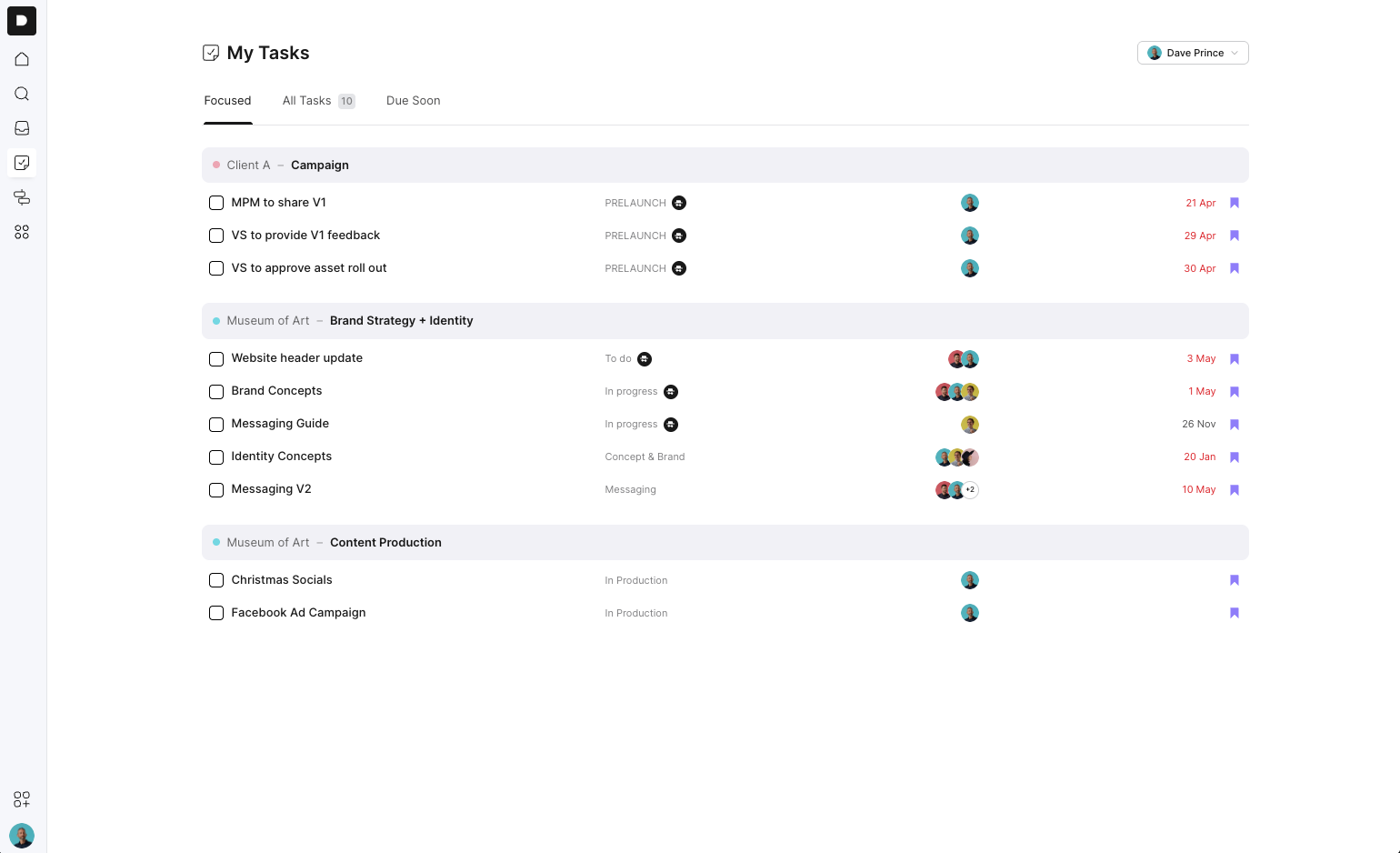
Focused is your “shortlist” — the tasks you’ve chosen to prioritise.
Use the bookmark icon in All Tasks to add an item to your Focus list. This is ideal for:
Daily planning
Weekly priorities
Grooming a long task list into something achievable
Everything you bookmark lives here until you remove it.
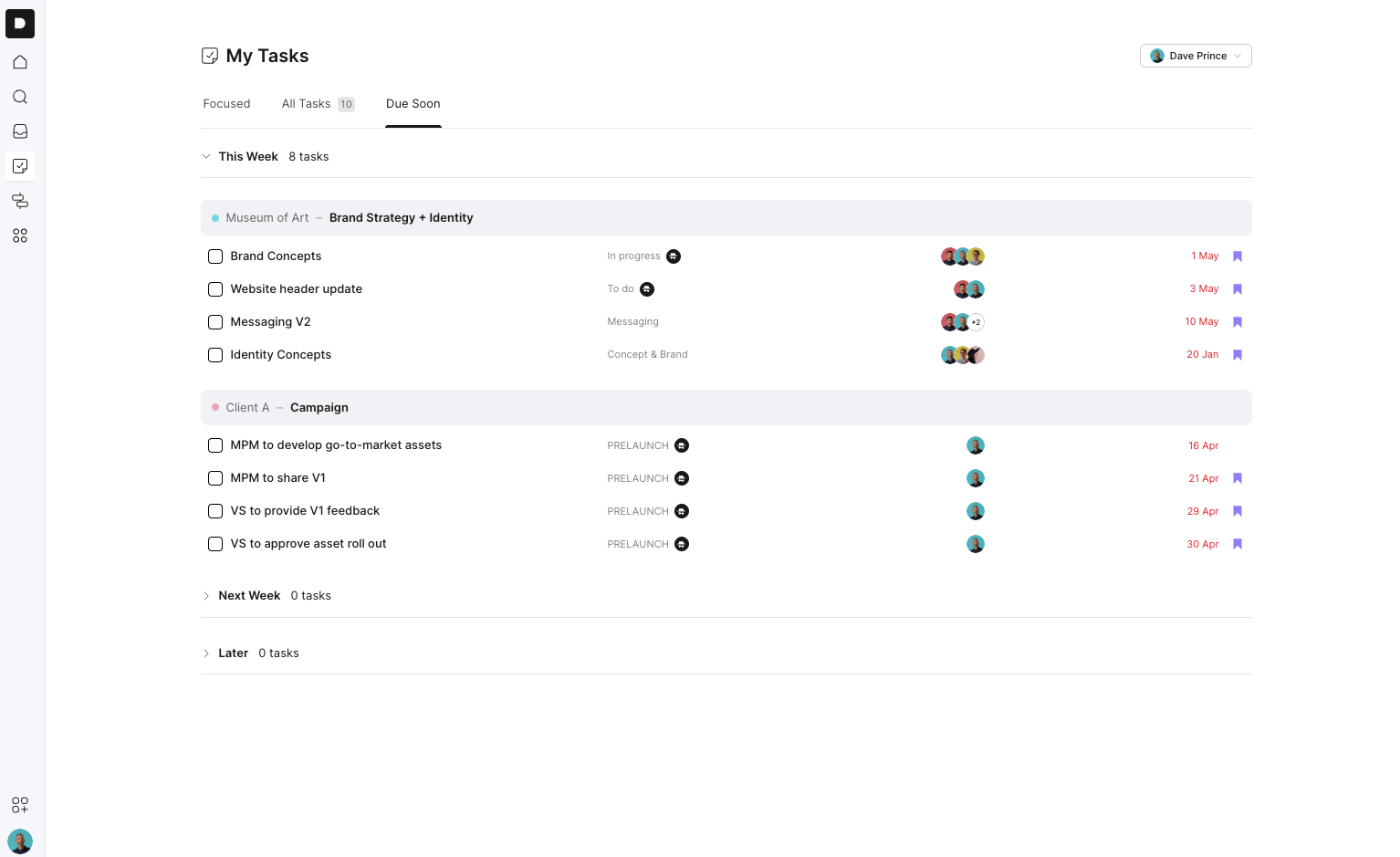
Due Soon automatically bubbles up tasks based on urgency. Tasks are grouped into:
This Week
Next Week
Later
Within each group, tasks are sorted from most urgent to least urgent, so you always know what needs attention first.
We’re working on an upgrade that will let you add your own personal tasks inside My Tasks — separate from project work. These could include:
Admin reminders
Billing tasks
Client follow-up calls
Quick internal to-dos
Prep for meetings
Day-to-day tasks that don’t belong in a project
This will give you a complete view of your day — project tasks + personal tasks — all in one place.