When you open the calendar, it automatically loads the current month. You can easily move backward or forward to browse past or upcoming months and see everything that’s been planned.
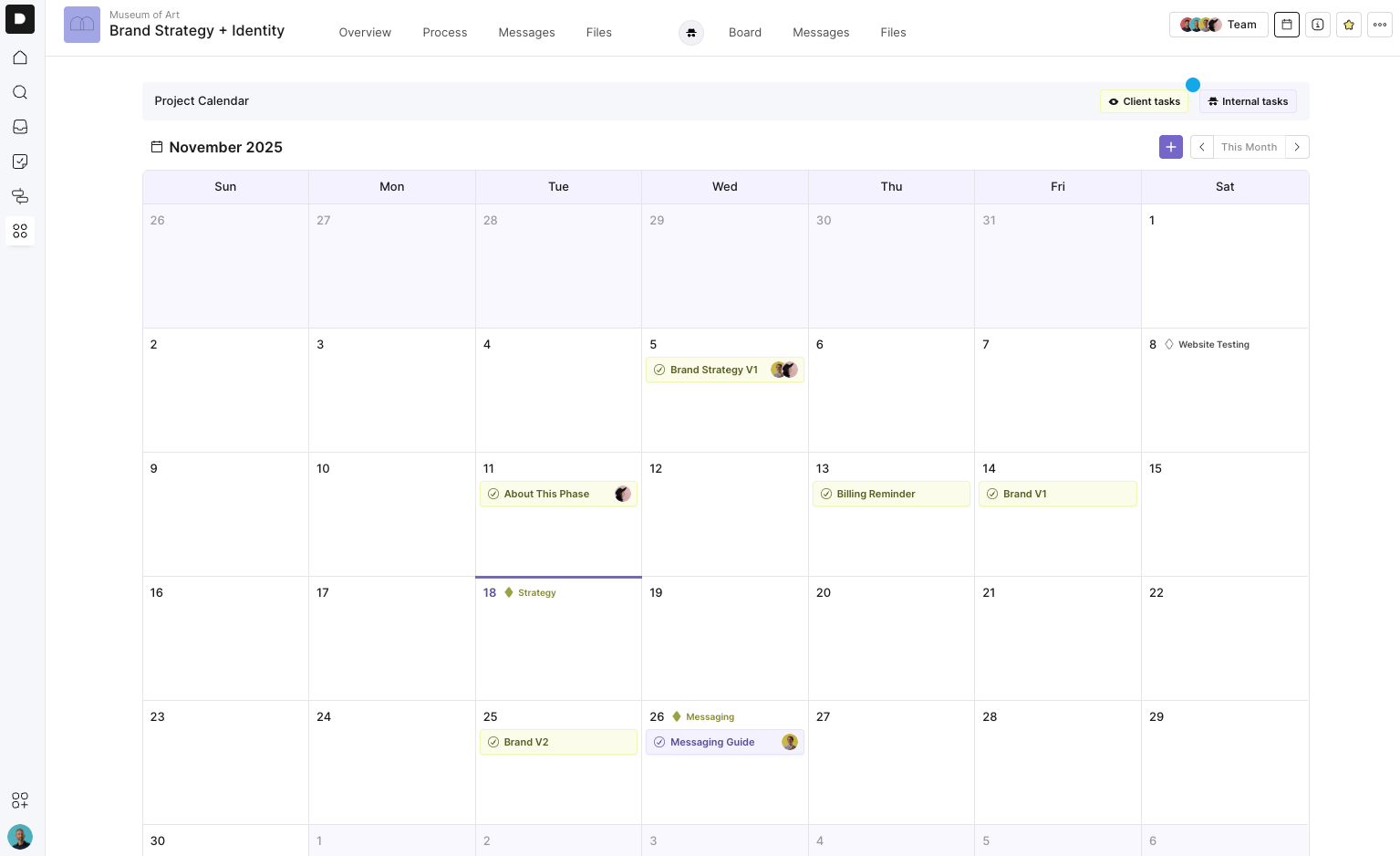
Every task with a due date appears on the calendar. This includes:
Client tasks
Internal team tasks
If a task is assigned to a client, they’ll also see it in their own Calendar View. This screen is especially useful when you need to walk clients through a critical path, share key dates, or present a high-level delivery plan.
There are three ways to add items to the calendar:
Any task that has:
A due date
Will automatically appear on the Calendar View. This works for both Process projects and Board projects.
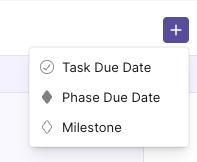
Click the + button (top right) to add:
A new task
A phase due date
A milestone
Each option opens the slide-out drawer so you can configure the item.
Hover over any date on the calendar and you’ll see a small + icon appear.
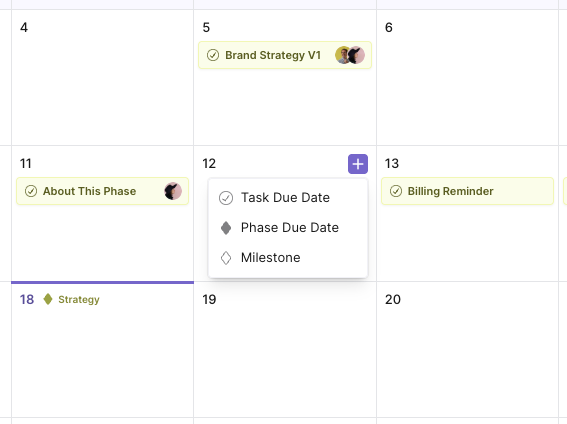
Click it to add:
A task
A phase due date
A milestone
When creating or editing a task due date:
The drawer slides open from the right.
Select the task or phase step you want to add a due date for.
Assign a due date, team member or client, if needed.
Save — and the item will instantly appear in the calendar.
You can also complete tasks directly from the calendar by ticking them off.
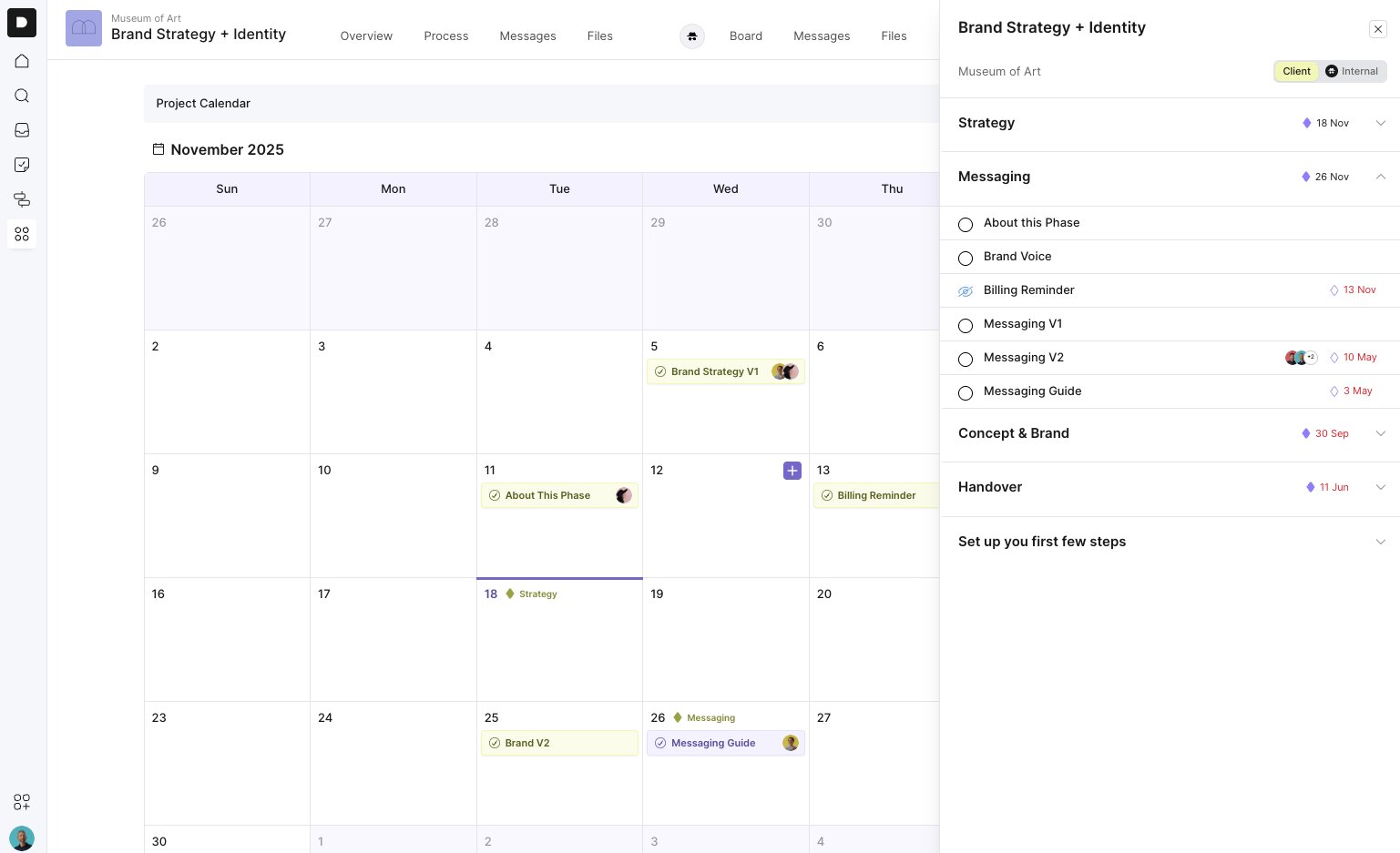
Each task is deep-linked, so clicking it will take you straight to the full task details inside the project.
You can move tasks around the calendar easily:
Drag a task from one day to another
The due date updates automatically
This makes reshuffling your schedule fast and intuitive.
You can switch between:
Client view (what your client sees)
Internal view (tasks assigned only to team members)
This helps you plan your internal workflow while also sharing a clear, client-friendly timeline.
Adding a phase due date works just like adding a task:
Select “Phase Due Date”
Choose the phase from your process or board
Pick a date and save
Phase due dates appear as a solid diamond icon, sitting at the top of the specific date.
Milestones allow you to mark important project moments, such as:
Launch dates
Handovers
Sign-off points
To add one:
Pick a date
Give the milestone a name
Save
Milestones appear as hollow diamonds so you can easily distinguish them from phase dates.