Outlign keeps billing simple and transparent so you always know what you're paying for and when your next payment will occur. You can manage everything related to your subscription directly from the Billing section inside your Company Settings.
This article explains what each billing field means and how to manage your subscription.
Click your workspace name in the top left.
Select Company Settings.
Open the Billing section.
From here you can view your current plan, manage users, update payment details, and download invoices.
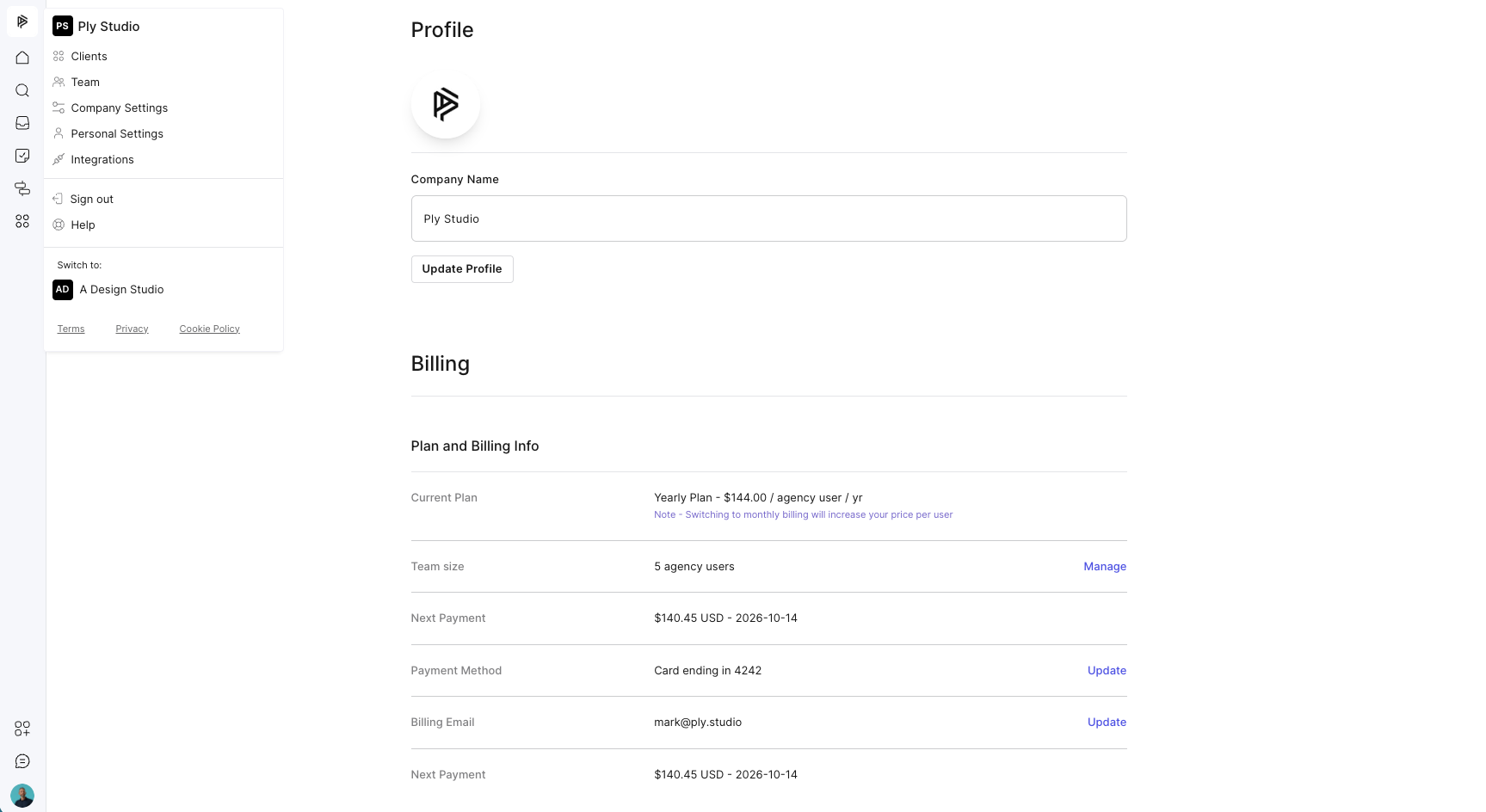
This shows the plan your workspace is currently using.
Example
Yearly Plan — $144.00 per agency user / year
Outlign is billed per agency user, so your total cost depends on the number of users in your workspace.
You may also see a note indicating that switching to monthly billing would change the per-user price.
This shows how many agency users are currently included in your billing.
Example
5 agency users
Billing scales based on the number of users in your workspace.
You can click Manage to add new users, remove users, or adjust your team size. Your subscription cost will adjust accordingly.
This shows the amount that will be charged, the currency, and the date your subscription renews.
Example
$140.45 USD — 14 Oct 2026
This is when your next billing cycle will occur.
Displays the card currently used for billing.
Example
Card ending in 4242
Click Update if you need to change your credit card, replace an expired card, or switch to a different payment method.
This is the email address where billing receipts and payment confirmations are sent.
You can click Update to change where invoices are delivered.
Many agencies work with freelancers or contractors who move in and out of projects. Some months you might have five active freelancers, other months only two. Naturally, you don’t want to carry unnecessary seat costs when someone isn’t actively working with you.
Outlign’s billing system is designed to support this flexibility.
When you remove a user, any unused portion of their subscription is automatically converted into billing credit. If you add someone later, that credit is applied before any new charge occurs.
This allows you to rotate freelancers on and off your team without worrying about paying for seats you are not using.
For a full explanation and examples of how this works, see the detailed guide
https://help.outlign.co/en/articles/91-managing-freelancers-without-increasing-costs
At the bottom of the billing section you can manage your subscription status.
Pausing your subscription temporarily stops billing while preserving your account.
This can be useful if your team is taking a break from projects or you want to stop charges without deleting your workspace.
Cancelling will stop your subscription from renewing.
Your workspace will remain active until the end of the current billing period.
The Receipts section shows a history of your payments.
Each entry includes the date of the transaction, the amount charged, and a Download link for the invoice.
You can download receipts anytime for accounting or reimbursement purposes.
If you have questions about billing, invoices, or plan changes, contact the Outlign support team and we’ll be happy to help.