You can schedule time directly at the task level, rather than having to jump back and forth between tasks and the Schedule view.
As you work through the day, you can plan time for yourself or your team exactly where the work happens, on the task or step itself. Any time you schedule here, it automatically appears in the Schedule view, keeping everything in sync.
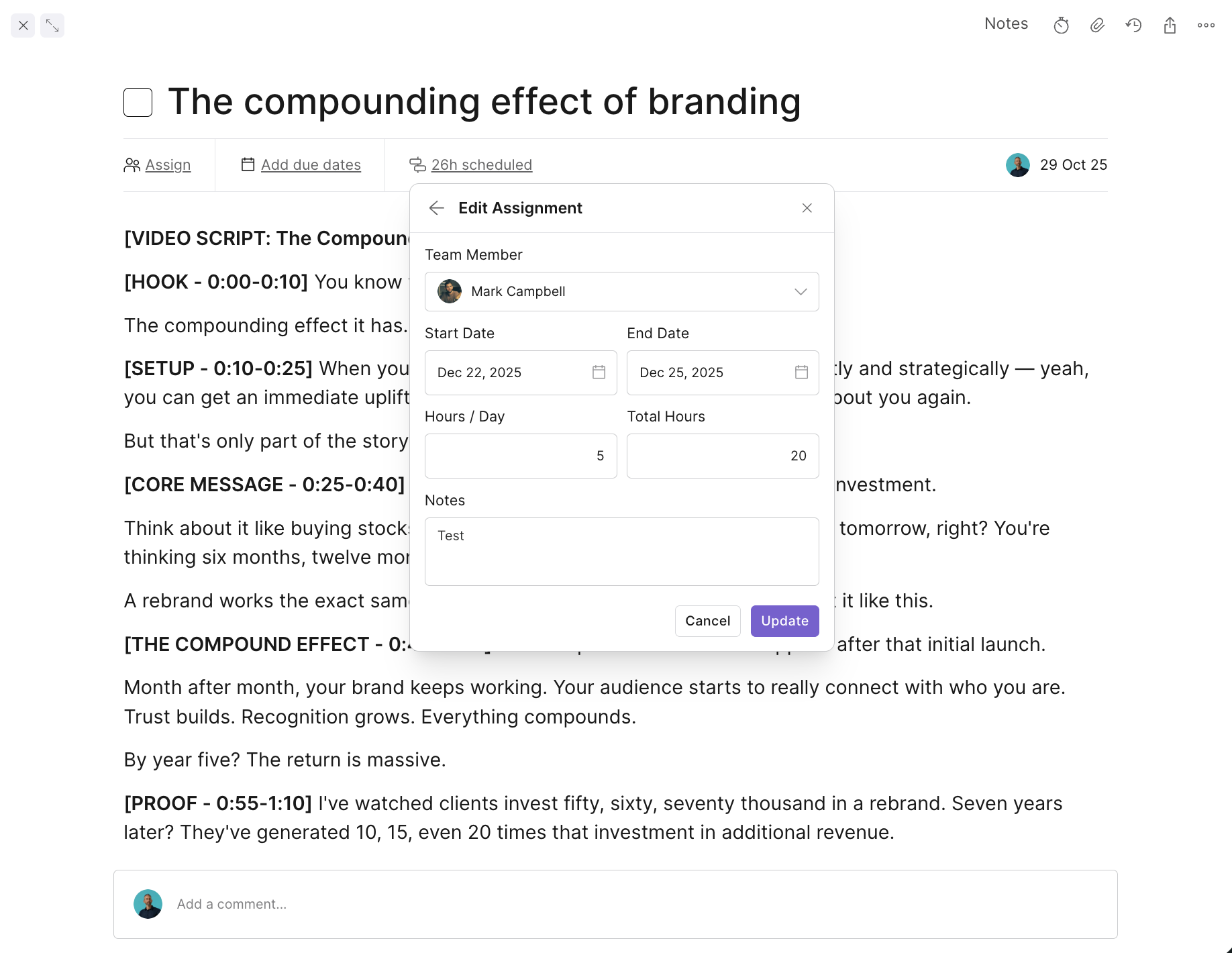
Open any task or step in a project.
Click the Schedule link on the task.
Select the team member you want to schedule.
Choose a start date and end date.
These can be the same day, or spread across multiple days.
Set the time allocation:
Enter hours per day, or
Enter total hours, and Outlign will automatically calculate the daily hours for you.
(Optional) Add notes to this scheduled time.
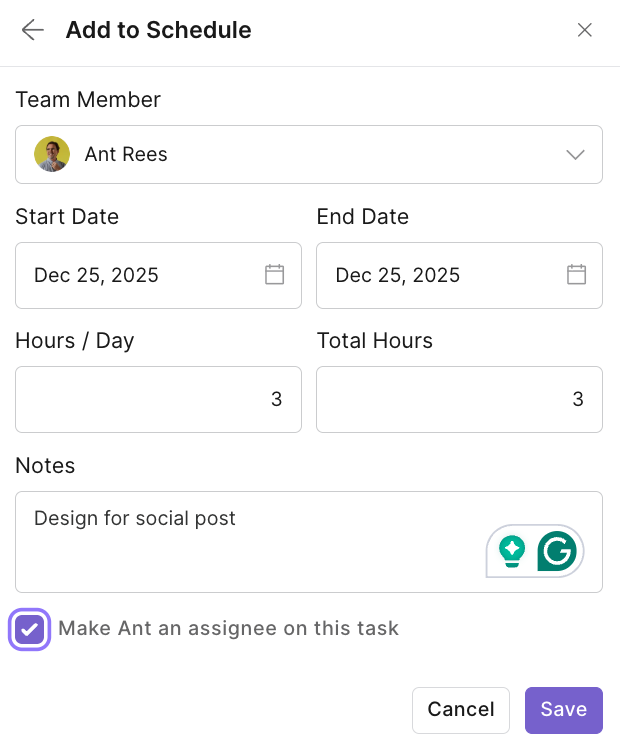
Assign the task to the team member if needed (so that they are assigned at the task level and in the schedule)
Click Save.
You can schedule more than one person on the same task.
After saving one schedule entry, click Schedule again.
Choose another team member.
Select their dates and hours
Save.
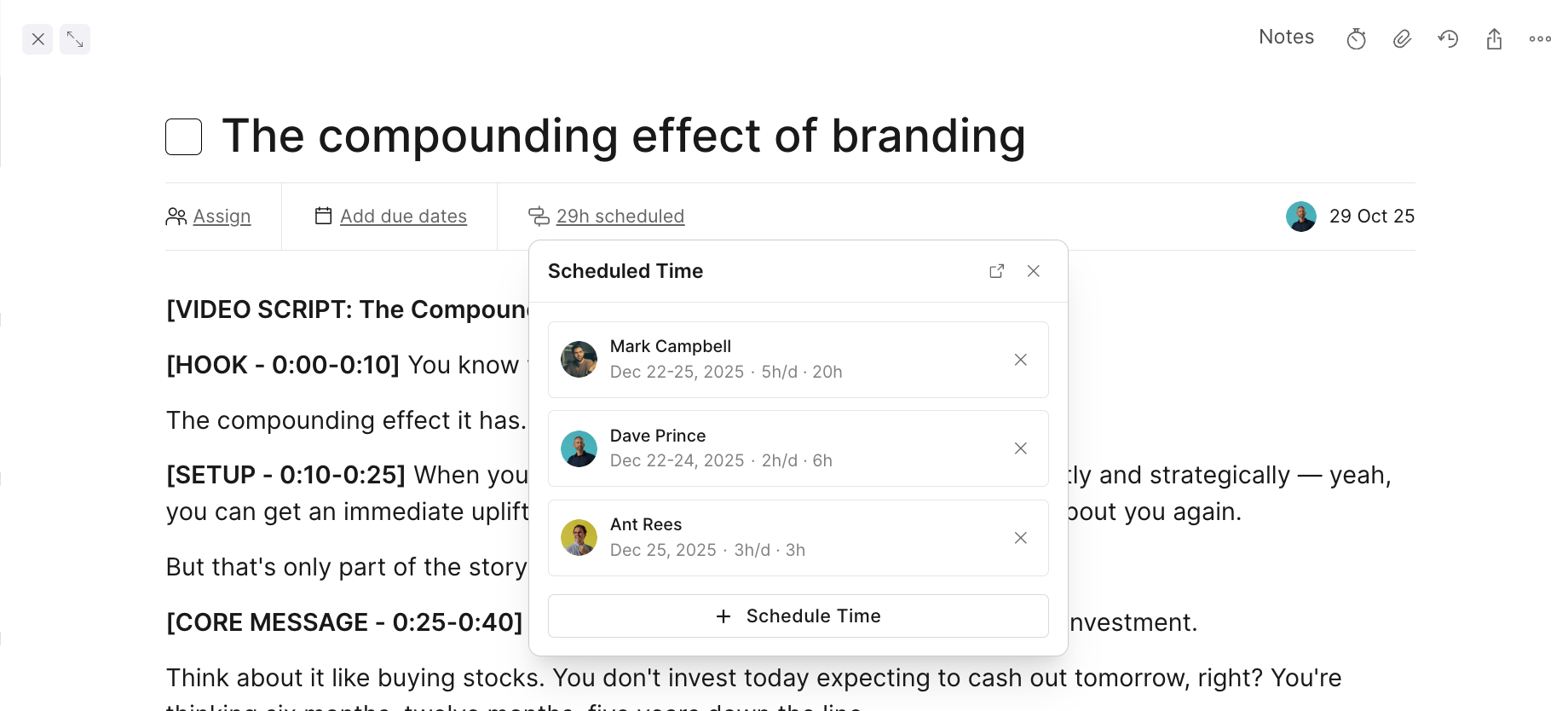
Each person’s time is stored separately and shown clearly on the task.
From the task, you can:
See who is scheduled on that task at a glance.
Click Open in Schedule to jump straight to the Schedule view.
Edit or delete scheduled time if plans change.

When you schedule multiple tasks or steps within the same project for one team member, Outlign automatically groups them together in the Schedule view.
For example:
You schedule Website design for a designer.
Within the same project, you then schedule Contact page design for the same person, during the same general timeframe.
In the Schedule view, Outlign will collate these tasks together, pulling all related tasks from that project into a single grouped view. This gives you a clear picture of how that person’s time is allocated across the project, without clutter or duplication.
You still retain task-level detail, but the Schedule view stays clean and easy to read.
The number of hours shown as scheduled on a task only includes time from the current week onwards.
Any time that was scheduled in previous weeks is excluded from this total. This is intentional, and it means:
You’re seeing how much work is still to be done
Not the time that has already elapsed
Making it easier to understand the remaining effort on a task at a glance
Think of scheduled hours as forward-looking, not historical.
Plan work where it actually happens, on the task.
Avoid double-handling scheduling.
Keep the Schedule view automatically up to date.
Make day-to-day project planning faster and smoother.
To learn more about the schedule feature and how to use this to plan your team and work head to our help article here https://help.outlign.co/en/articles/63-how-to-use-scheduling