Outlign’s built-in time tracking keeps your time entries alongside the work they relate to. Start a timer while you work, add time manually, or review your hours in your timesheet. Managers can also monitor budgets and reporting across the agency.
If your agency uses Harvest, you can use the Harvest integration instead. This guide covers Outlign’s built-in time tracking.
Time tracking is available on the Studio plan.
Who can do this: Managers.
Before your team starts tracking time, set your agency’s default currency, hourly rate and activities.
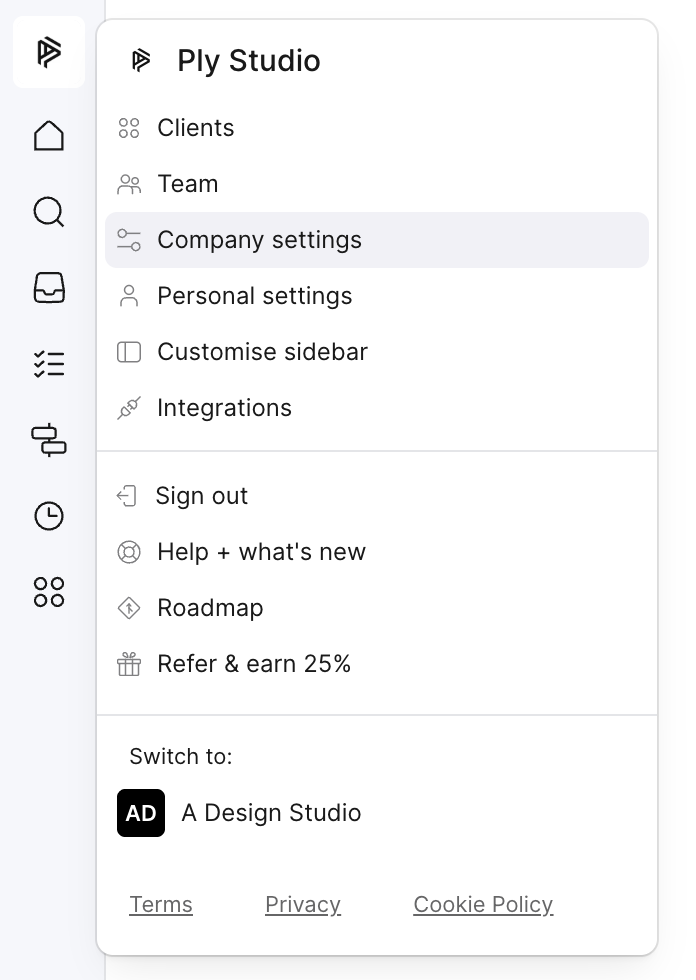
Click your agency avatar in the top-left corner.
Open Company Settings.
Select Time Tracking.
Choose Outlign as your time-tracking option.
Set your currency and default hourly rate.
Set up the activities your team will track time against.
Your default hourly rate is used across your projects. You can change it for an individual project when needed.
Your hourly rate will typically be your agency’s charge-out rate: the amount you charge clients for an hour of work.
Use this consistently when reviewing billable value and planning your project budgets. Billable value represents the value of tracked work at the applicable rate; it does not mean that amount has been invoiced or paid.
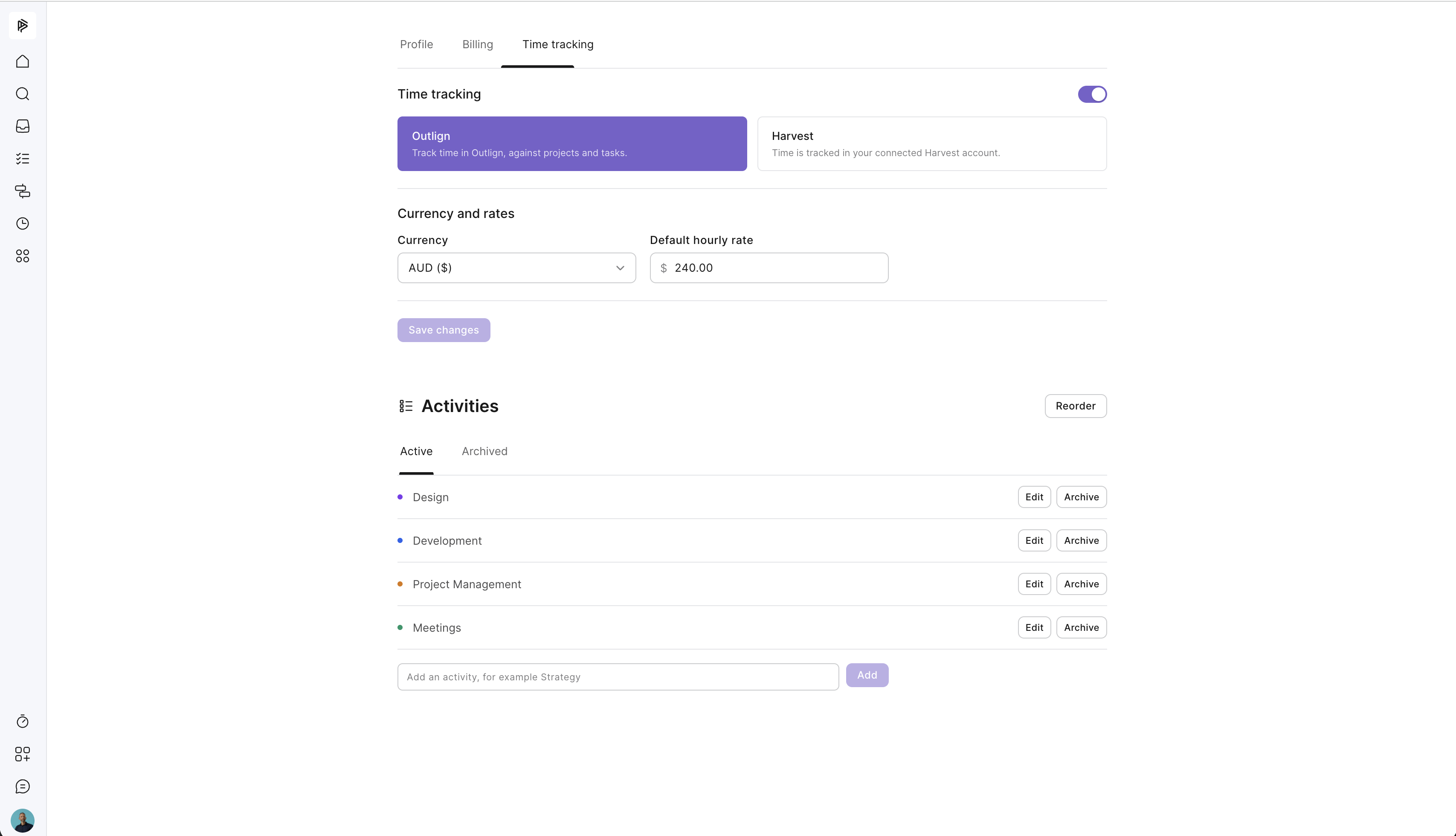
Activities describe the type of work being done. For example:
Strategy
Content
Design
Development
Project management
A task tells you what you worked on. An activity tells you what type of work it was. For example, you might track time against a “Homepage concepts” task using the “Design” activity.
Use a short, consistent list of activities across your projects. Too many overlapping or project-specific categories can make reports harder to compare.
Managers and Team Members can manage activities. Freelancers can use activities when tracking time, but cannot manage the list.
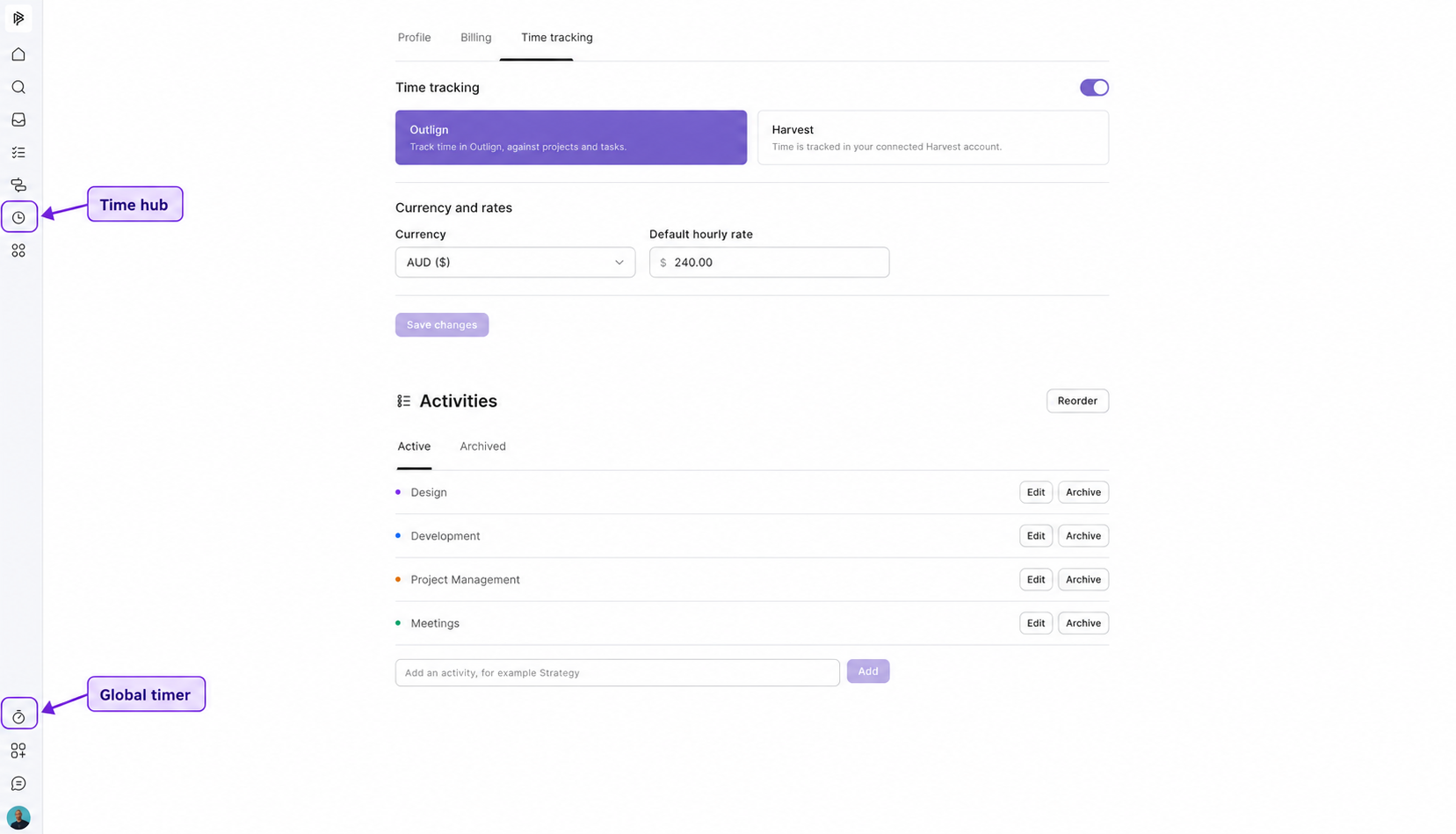
There are two time-related tools in the sidebar:
Tool | What it’s for |
|---|---|
Global timer | Quickly start a timer, add time manually, review today’s entries or return to an earlier entry. Available from any screen. |
Time hub | Open your timesheet. Managers also have access to the Report, Entries and Projects views. |
You can also track time directly inside a task or process step. Managers and Team Members can review project hours from the Time tab on the internal side of a project.
The global timer lets you track time without leaving the screen you’re working on.
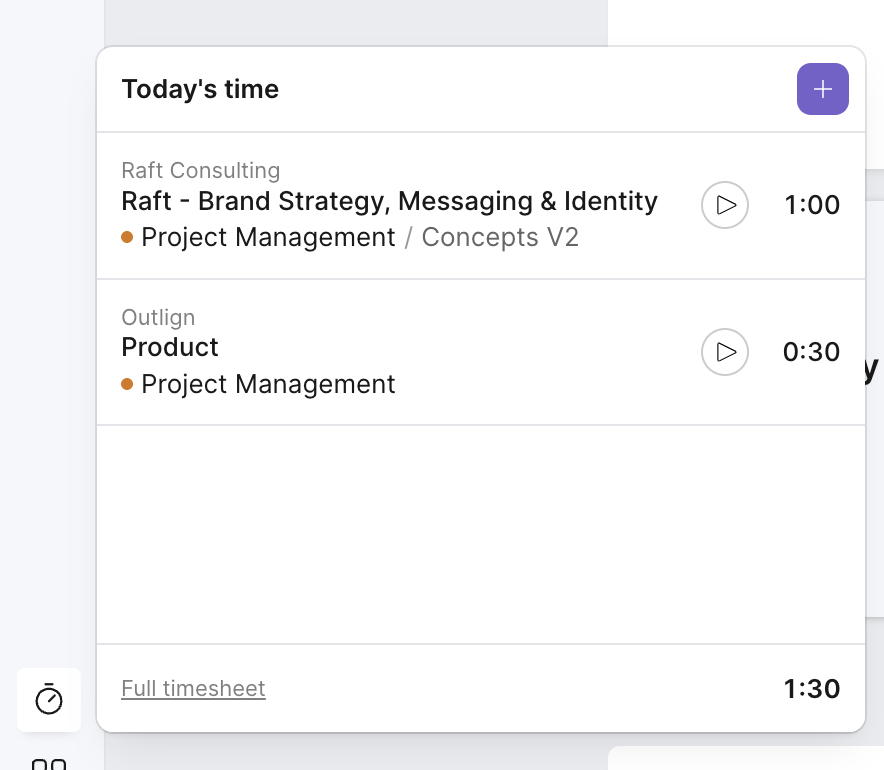
Open the global timer in the sidebar.
Click the + button to add an entry.
Check or select the client and project.
Select the task you want to track against, if applicable.
Choose the activity and add any useful notes.
Click Start Timer.
Stop the timer when you finish that piece of work.
The timer uses your current project context to help prefill the entry. It can also recall the task you last tracked against. Always check the selected project and task before starting, especially when switching between projects.
You can change the selection to another project you have access to.
If you’ve already completed the work, add a manual time entry through the global timer. Choose the relevant project, task and activity, then enter the time spent.
This is useful for recording a meeting, adding work you forgot to time, or catching up at the end of the day.
The global timer shows your entries for the day and a total of the time you’ve tracked.
From here, you can:
Restart a timer from an earlier entry.
Edit an existing entry.
Add time manually.
Open your full timesheet.
Tracking directly from a task keeps the time connected to the specific work you’re doing.
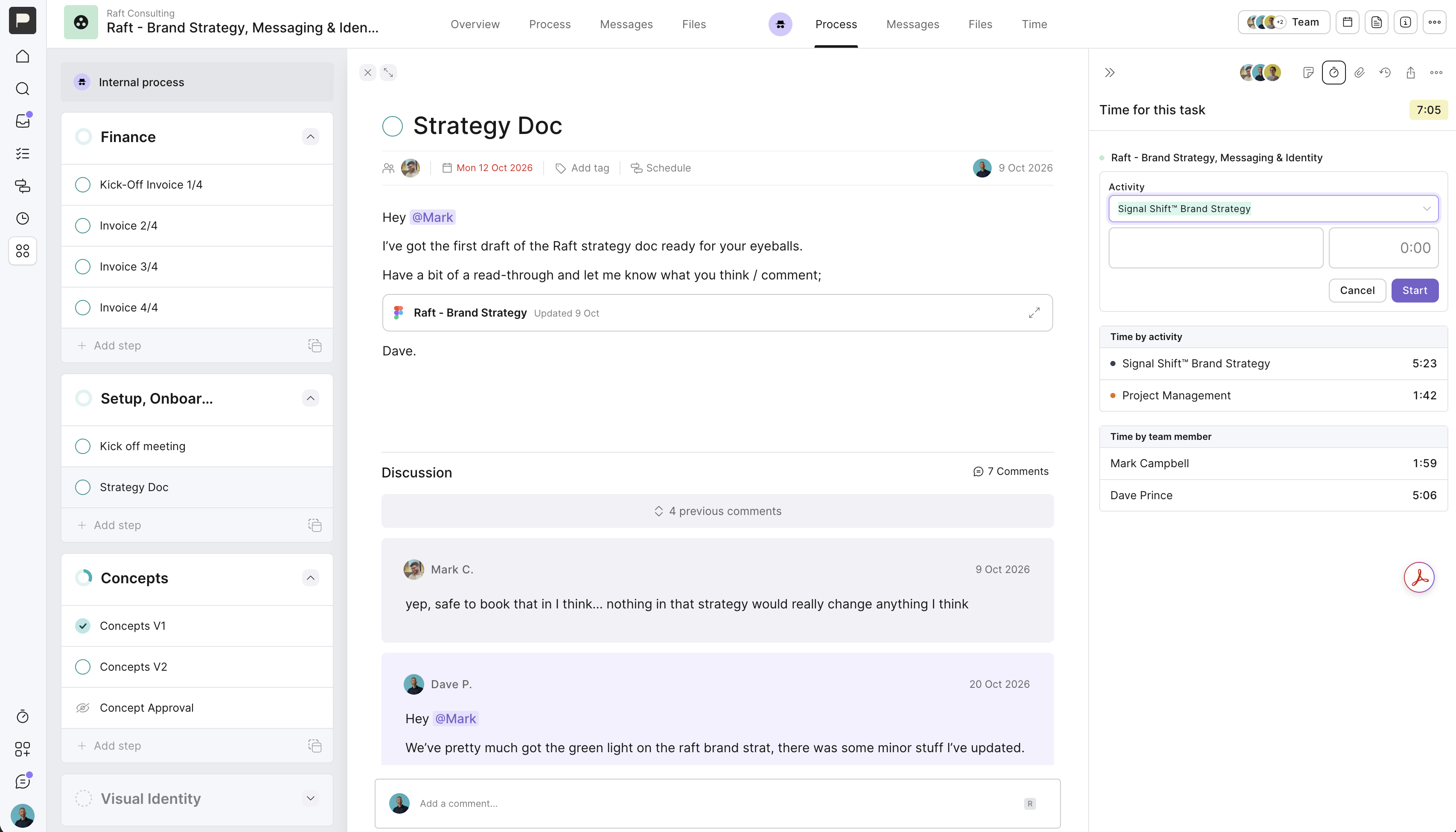
Open the task or process step.
Click the time-tracking icon in the right-hand menu.
Add a time entry.
Select your activity.
Add notes if needed.
Start the timer.
The task’s time panel also includes a summary of time by activity and team member, depending on your role. Freelancers can only see their own time.
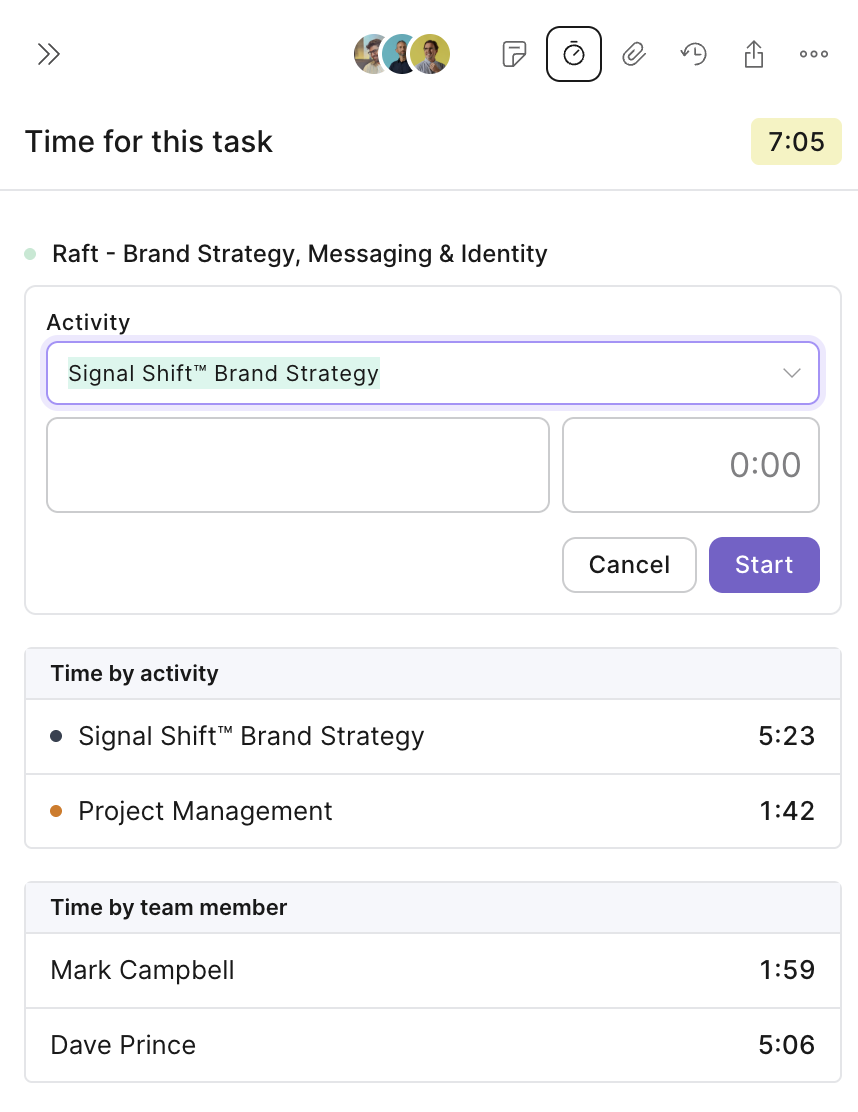
Tip: Start your timer when you open a task to begin work. Tracking as you go helps you capture small jobs and revisions that are easy to forget later.
Time tracked against a client-facing task remains private to your team. Clients cannot see the entries or time summaries.
Open the Time hub and go to your Timesheet.
The timesheet gives you a grid view of your time across projects. You can review your day or week, add time manually, and use the date filter to find entries from previous weeks or months.
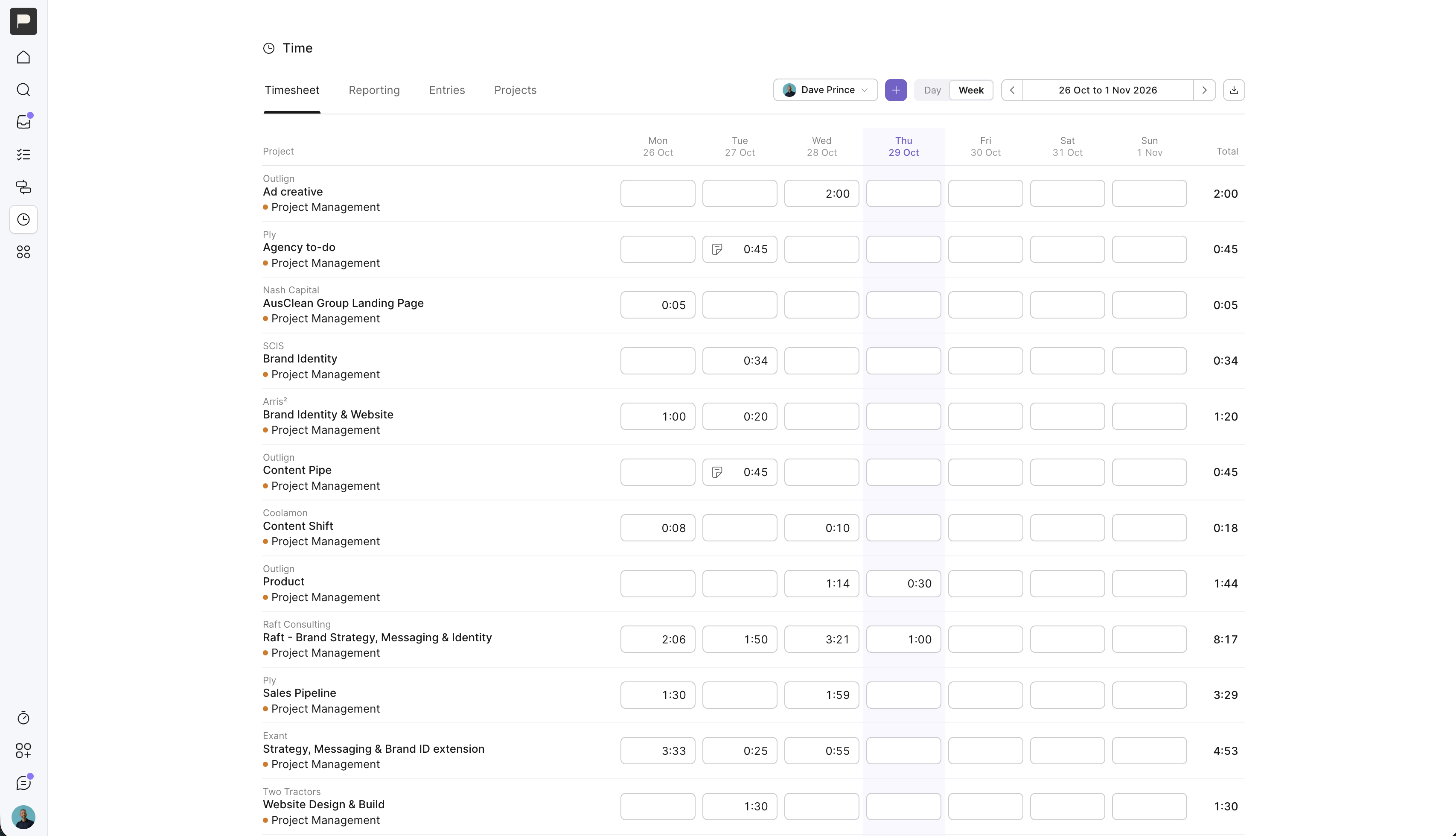
Use your timesheet to:
Check that you’ve recorded all your work.
Add missing time against the relevant project.
Review and correct your own entries.
Open a project by clicking its linked name.
Export your timesheet as a CSV using the option in the top-right corner.
Managers can open other team members’ timesheets, add time on their behalf, and edit or delete their entries.
Team Members and Freelancers can only edit or delete their own entries.
Note: If someone loses access to a project, they also lose the ability to edit time they previously logged on that project.
Who can do this: Managers.
Set up the budget when you create a project so you can compare tracked time with the work you’ve scoped.
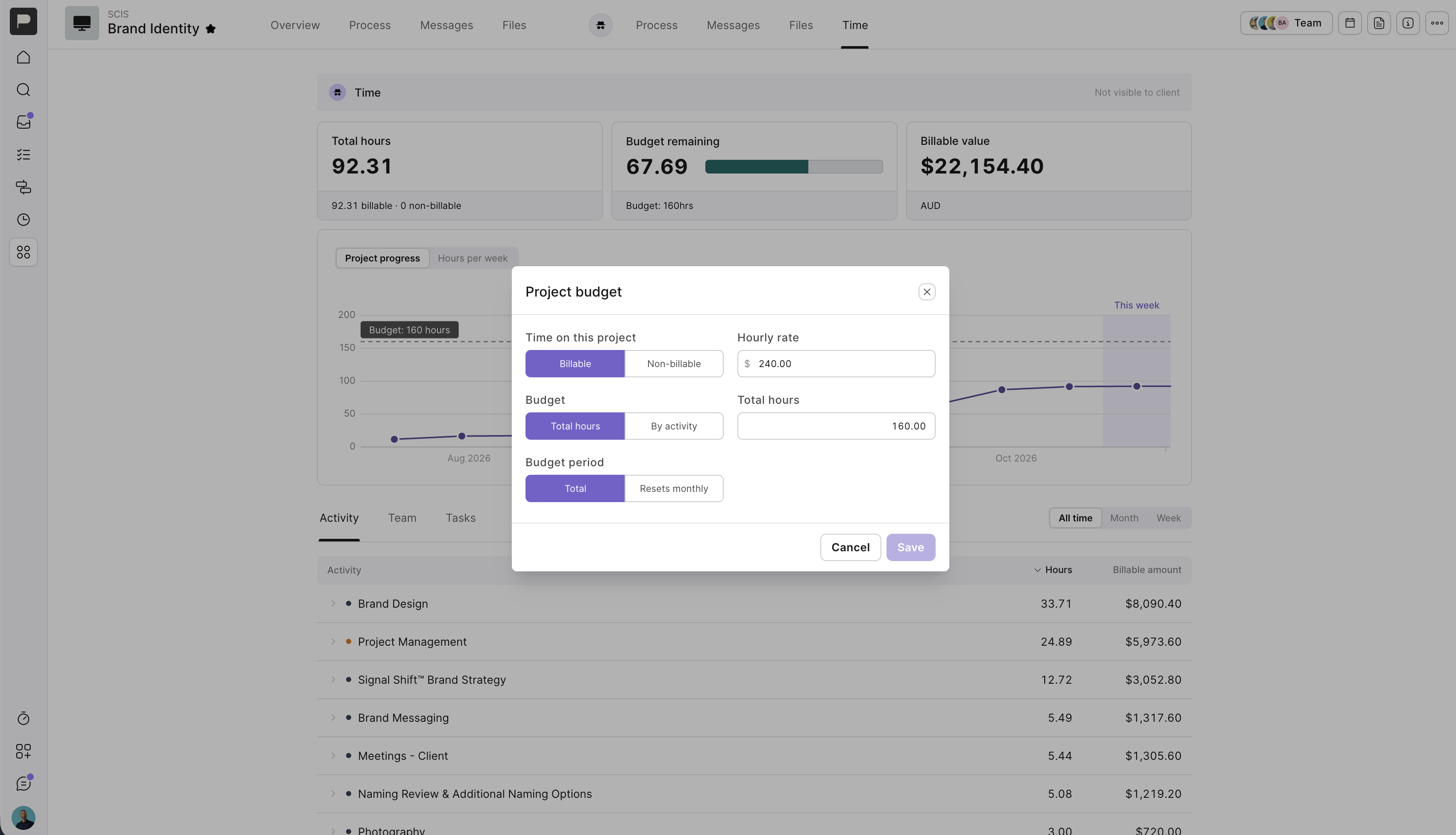
Open the project.
Go to the internal side.
Open the Time tab.
Open the budget settings.
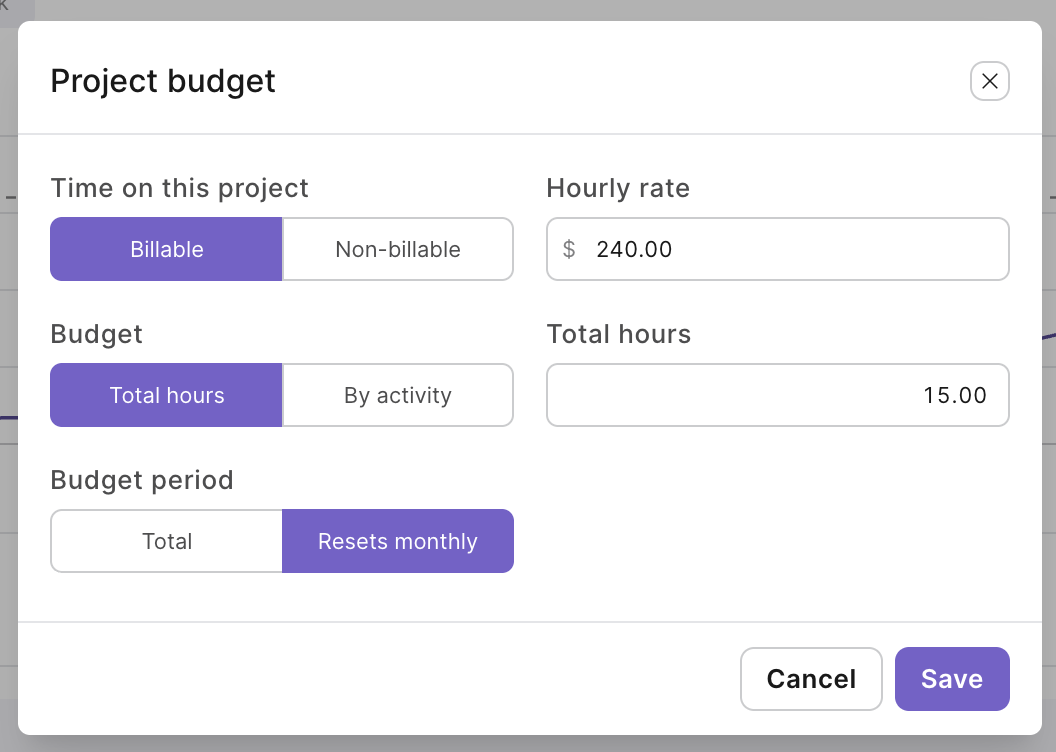
Choose whether the project is billable or non-billable.
Check the project’s hourly rate.
Choose your budget structure and enter the available hours.
Save your changes.
Use billable for client work you charge for.
Use non-billable for work such as internal agency projects or pro bono work. Tracking these hours still helps you understand where your team’s time goes.
A total-hours budget gives the project one overall allocation of time.
For example, if a project has a budget of 40 hours, you can compare the hours tracked across the project with that total allocation.
This can be useful when you need an overall limit without dividing the budget between activities.
An activity budget divides the available hours between types of work.
For example, suppose you’ve sold a website project for $15,000 and use a project hourly rate of $150. That gives you 100 hours to allocate.
An example allocation could be:
Activity | Budgeted hours | Value at $150/hour |
|---|---|---|
Strategy | 15 | $2,250 |
Content | 15 | $2,250 |
Design | 30 | $4,500 |
Development | 35 | $5,250 |
Project management | 5 | $750 |
Total | 100 | $15,000 |
Bring the allocation across from your scope of work, enter the budgeted hours for each activity, and save.
As your team tracks time against those activities, you can review where you’re using the allocation and identify areas needing attention.
These figures are an example. Use your own scope, rates and agreed budget.
For ongoing work, you can set the budget to reset monthly.
For example, a $4,000 monthly retainer at $160 per hour gives you 25 hours each month.
Set the hours budget and enable the monthly reset option. This lets you monitor each month’s work against the retainer’s allocation.
The Time tab on the internal side of a project brings its time information together.
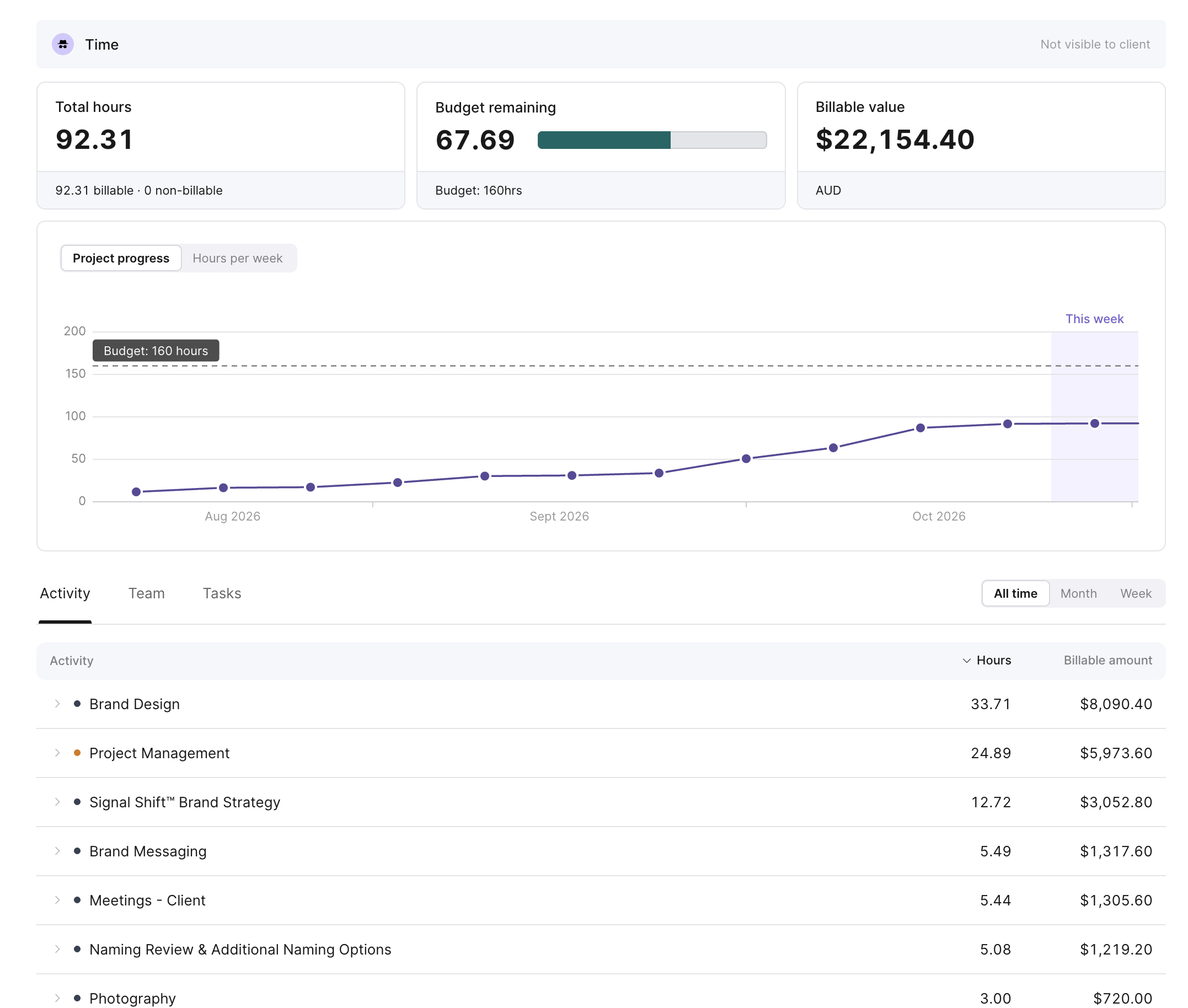
Depending on your role, you can review:
Total time spent on the project.
Progress against the hours budget.
Time by activity.
Time by team member.
Time against individual tasks.
Billable value and financial budget information — Managers only.
Team Members can see the team’s hours and the hours side of the budget on projects they have access to.
Freelancers cannot access the project Time page or see anyone else’s entries. They can see their own time and the hours side of the budget on assigned projects.
Use the project view to spot where time is being spent and whether you need to review the remaining work or scope.
Who can access these views: Managers.
The Time hub includes three views for reviewing time across your agency: Report, Entries and Projects.
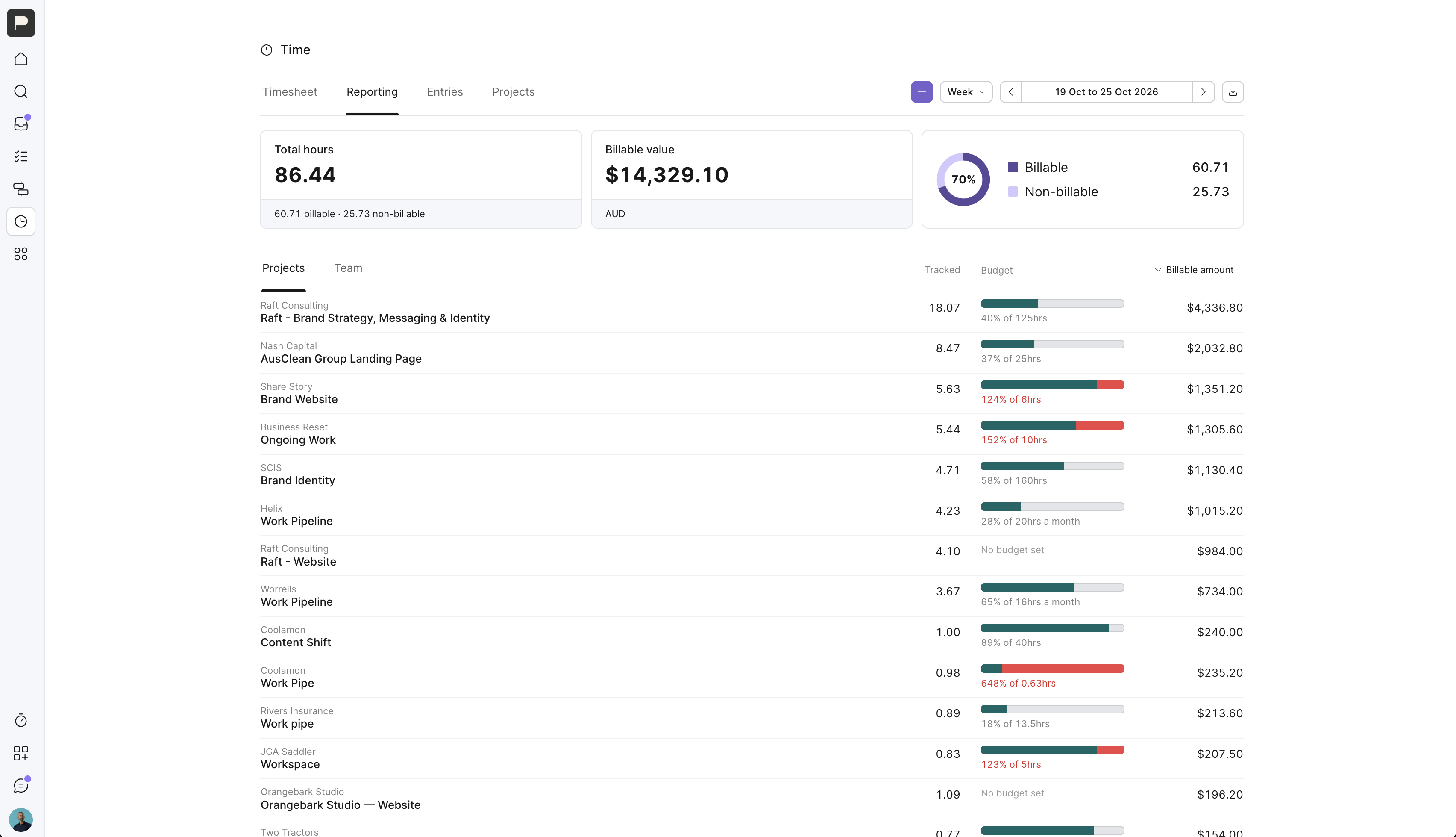
The Report view gives you an overview of:
Total hours tracked.
Billable value.
The percentage of billable and non-billable time.
How projects are tracking against their budgets.
Budget usage.
Review the information by project or team member. Use the date filters to focus on a week, month, quarter or year.
For example, you might review this month’s hours by person, then switch to projects to see which jobs are using the largest share of their budgets.
The Entries view shows the individual entries behind your totals.
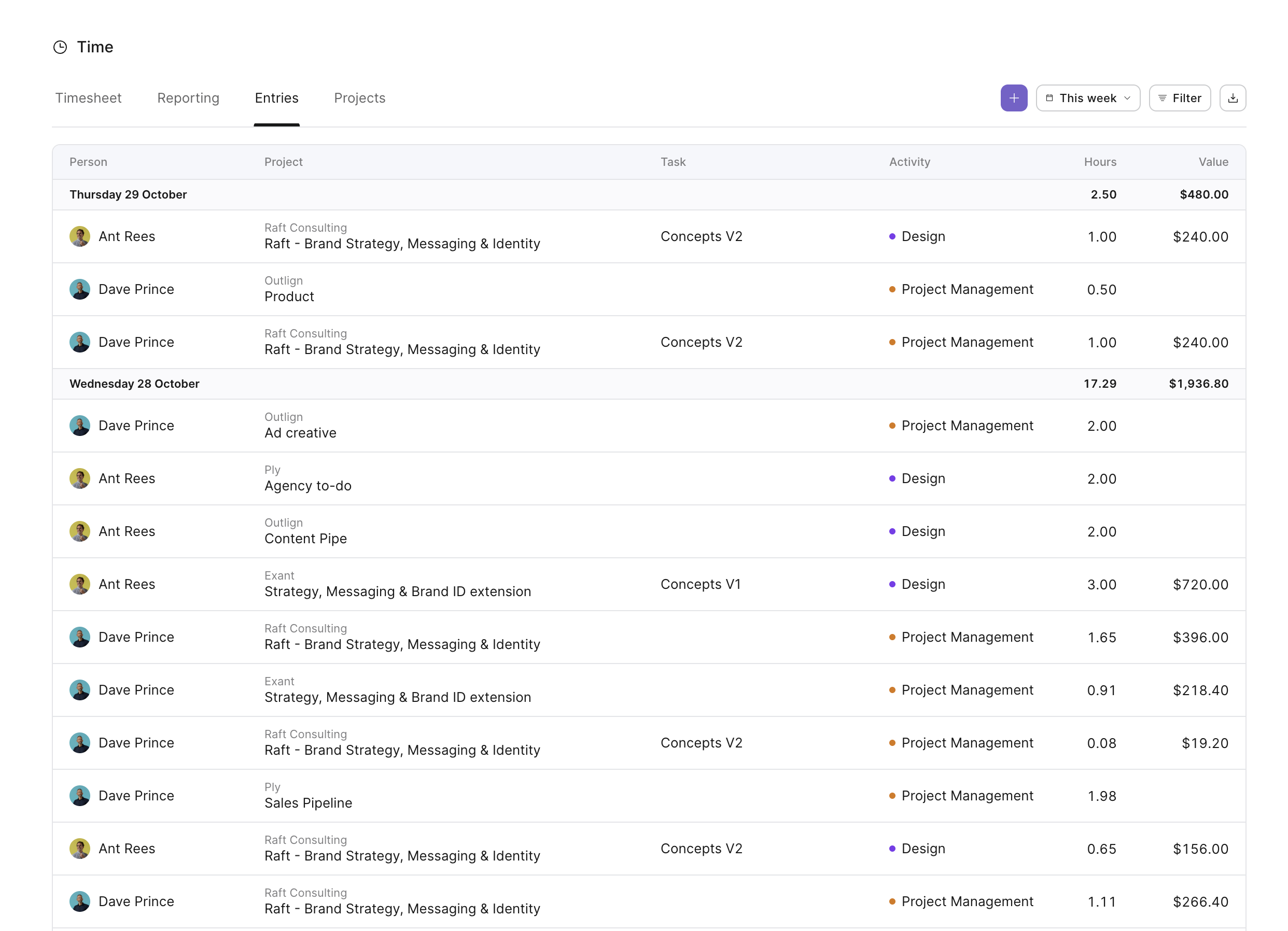
Choose a date range, then filter by:
Person
Client
Project
Activity
Billable or non-billable time
This is useful when checking the work recorded for a client, reviewing a particular activity, or investigating the entries behind a report.
The Projects view brings clients and projects together so you can review their hours and budget status.
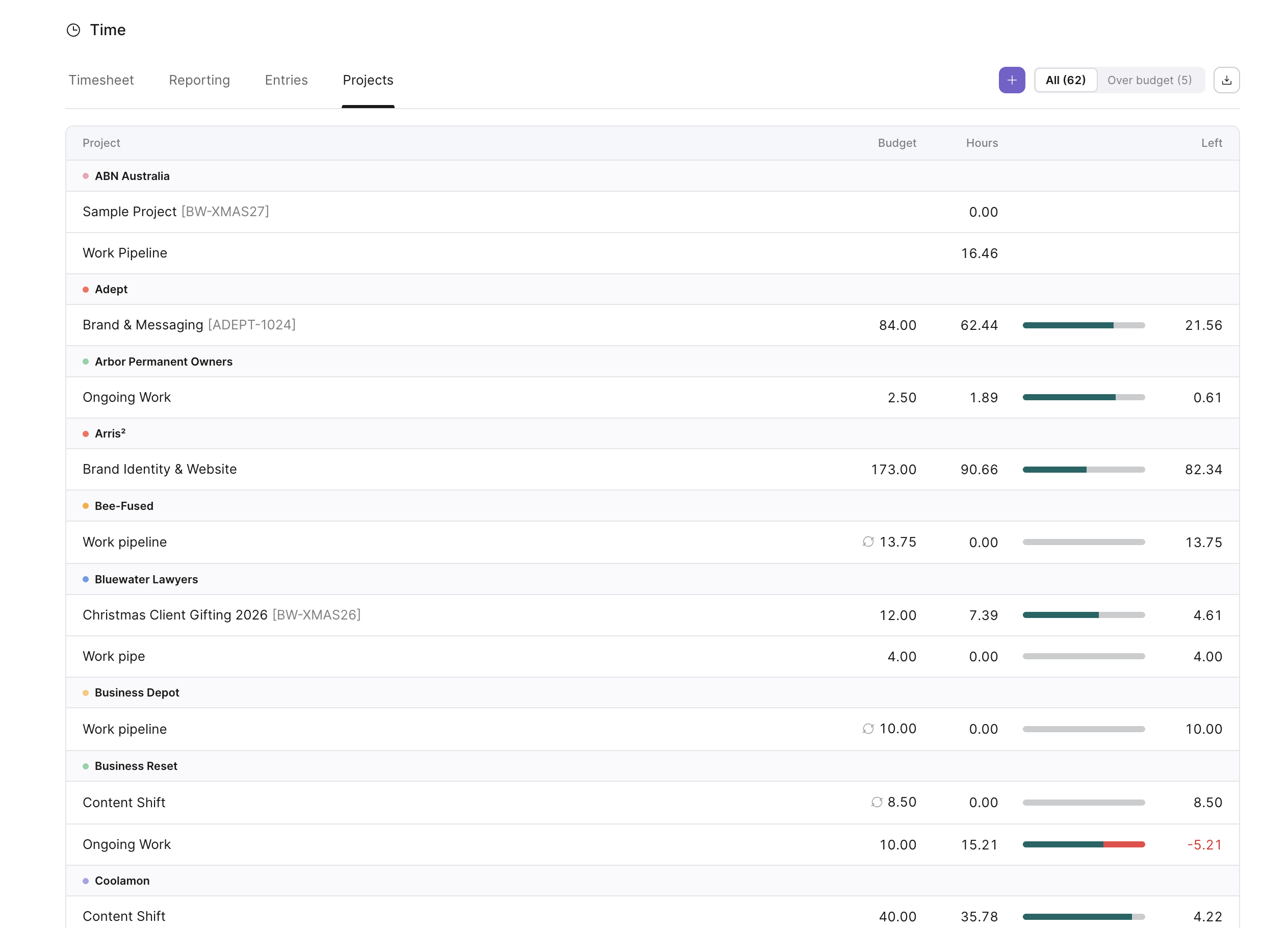
Use it to see which projects are under budget, approaching their allocation or over budget. You can filter for over-budget projects to focus on work that needs attention.
Use the CSV export options in the reporting views to take your time data into a spreadsheet or use it in another reporting workflow.
Time-tracking access follows your Outlign role.
Feature | Manager | Team Member | Freelancer | Client |
|---|---|---|---|---|
Track their own time | Yes | Yes | Assigned projects only | No |
View the team’s project hours | Yes | Projects they can access | No | No |
View budget hours | Yes | Projects they can access | Assigned projects only | No |
View rates, billable amounts and financial values | Yes | No | No | No |
Set or change project budgets | Yes | No | No | No |
Edit or delete time entries | Anyone’s | Their own | Their own | No |
Access company-wide Report, Entries and Projects views | Yes | No | No | No |
Manage activities | Yes | Yes | No | No |
Manage the rate card and company time settings | Yes | No | No | No |
Team Members and Freelancers have access to their own timesheet in the Time hub. Opening a shared company-wide report link does not grant reporting access.
Clients cannot see time-tracking information, even on client-facing tasks.
For more detail, see Team Roles & Permissions.
You can connect a compatible AI assistant to Outlign through its MCP server and use it to explore your time-tracking history.
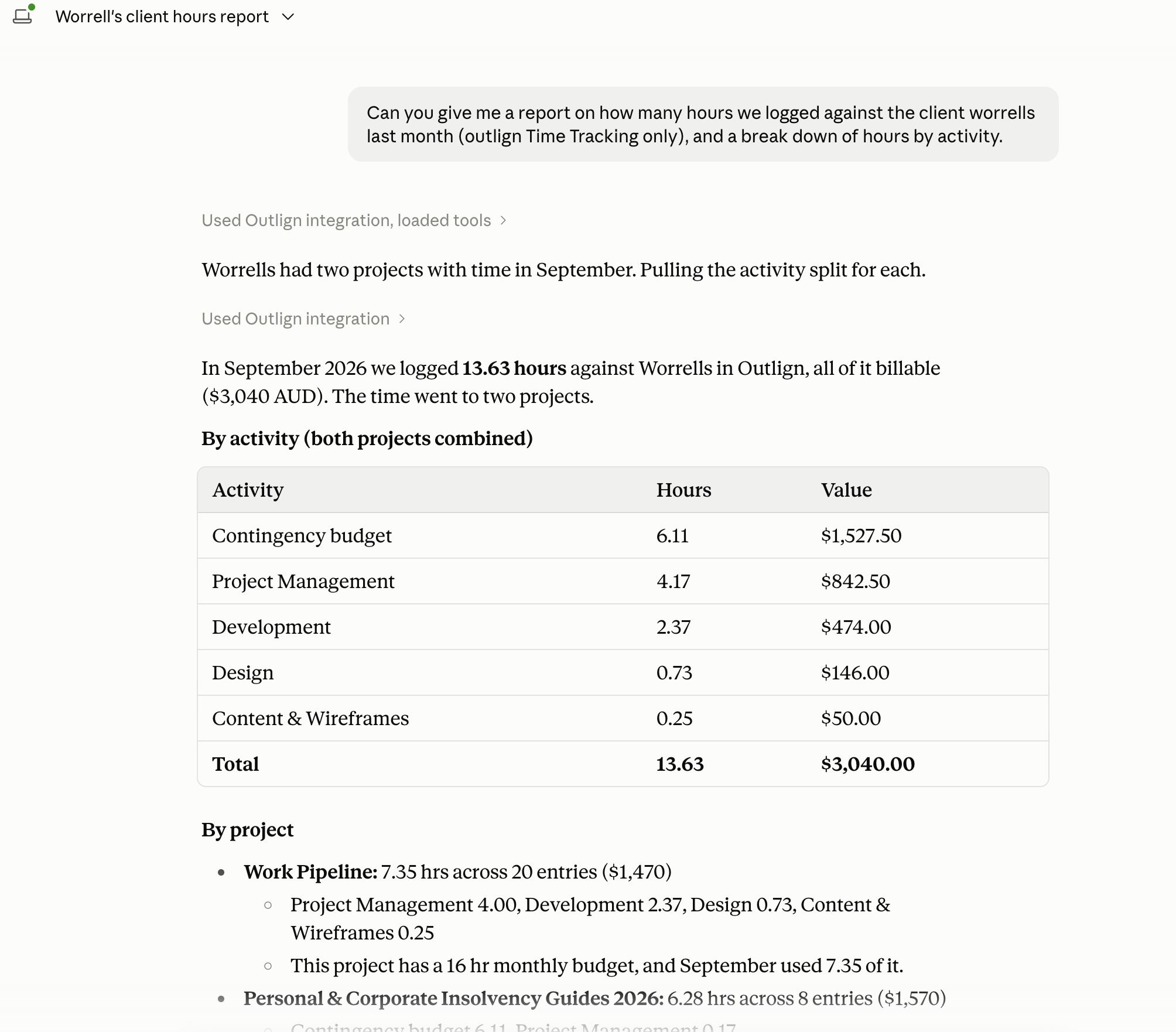
For connection instructions, see Connecting AI agents to Outlign.
Once connected, try prompts such as:
“Summarise the hours logged against [project] last month, grouped by activity.”
“Draft a client time report for [project] for [date range]. Group the work by activity and leave out internal notes and rates.”
“Show my time for this week, grouped by project.”
“Which projects went over their hours budget this month?”
“Compare billable and non-billable hours across the team last month.”
Your assistant uses your Outlign permissions. Requests involving team-wide reporting or financial information require Manager access.
When preparing a client report, review the draft before sharing it and check that it contains only the information you intend the client to receive.